Phone Number Search Filter
Got a phone number but not sure who it belongs to? This article shows you how to use the Phone Number filter in Contact Search to go straight from a number to the person behind it. You will learn how to run a search, what to do with the results, and a few ways to put it to work, like returning missed calls and matching numbers from your CRM or event lists.
Overview
The Phone Number filter lets you look up contacts in Seamless by typing or pasting in a phone number. Whether you are checking whether someone is already in Seamless, identifying a caller, or matching a number from another tool, you can go straight to the contact without building a search around titles, companies, or locations.
Getting Started
Searching by phone number is the fastest way to find a specific person when you already have their number. Instead of guessing which title, company, or location filters will surface the right contact, you enter the number and let Seamless find the match. This saves time and cuts down on scrolling through results that are close but not quite right.
Search for contacts by phone number using Contact Search. You can type a number directly into the filter or copy and paste one from another source, like a spreadsheet, your phone’s call log, or a CRM.
Starting a Search
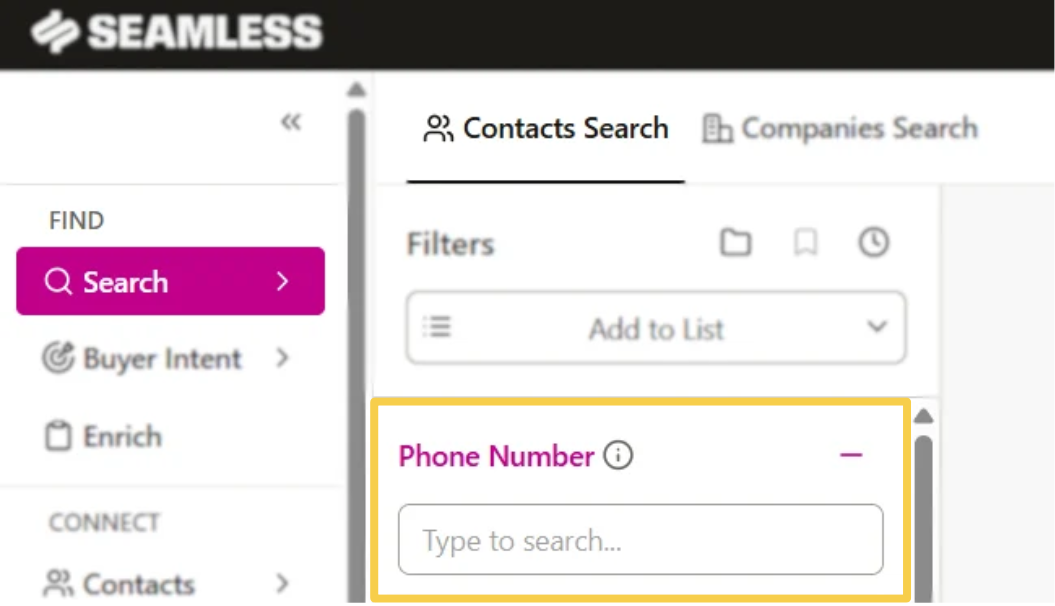
- Log in to Seamless and click the Search icon on the left menu bar. Start a Contact Search.
- Find the Phone Number filter in your list of filters.
- Type a phone number into the filter, or copy and paste one in.
- Click the black Search button.
- To save a contact you are interested in, click Find next to the contact. You can also use Find All to save every contact on the page.
Pro-Tip: Paste the number exactly as you received it and double-check for missing or extra digits before searching. A single wrong digit is the most common reason a search returns no results.
Phone Number Filter Benefits
Get the full contact profile: A phone number is often just the starting point. Searching by phone number brings up the contact’s full profile in Seamless, where you can find email addresses, company information, and other details to help you personalize your outreach and decide how to reach them.
Identify who is calling: Look up a number from a missed call or voicemail to quickly find out who it belongs to.
Match leads from other sources: Paste numbers from a list, form fill, or event signup to find the matching contact profiles in Seamless.
Reach a specific person: When you already have a name and number, skip the broader filters and go straight to the contact.
Example Use Cases
Return a missed call: A prospect leaves a voicemail from a number you do not recognize. Search the number to find their profile and see who they are before you call back.
Event and webinar lists: You have a list of registrants with phone numbers and want to find their contact profiles. Paste the numbers into the filter to find them.
CRM clean-up: You are reviewing records in your CRM and want to check a specific contact in Seamless. Copy their number from the CRM and search it.