Understanding Daily Send Limits and Campaign Allocations
Every inbox you connect to Seamless has a daily send limit and every campaign gets its own share of that limit. Getting these set up correctly is one of the most important things you can do to make sure your campaigns run smoothly and your emails stay out of spam folders. This article breaks down how limits and allocations work, how they interact across multiple campaigns, and what to do when you need to send more volume.
Overview
Seamless limits how many emails each inbox can send per day. This helps protect your domain reputation and keeps your emails out of spam folders. This article explains how those limits work and how they are shared across your campaigns.
How Many Emails Can One Inbox Send Per Day?
Every inbox you connect to Seamless has a daily send limit. Think of it like a bucket. Once the bucket is full, no more emails go out that day.
The default limit when you first connect an inbox is 250 emails per day. We recommend keeping it at 250 or below. Sending too many emails from one inbox too quickly is one of the fastest ways to hurt your deliverability and end up in spam folders.
The highest you can set it is 1,000 per day. The platform will warn you if you go above 250 and will not let you save anything above 1,000.
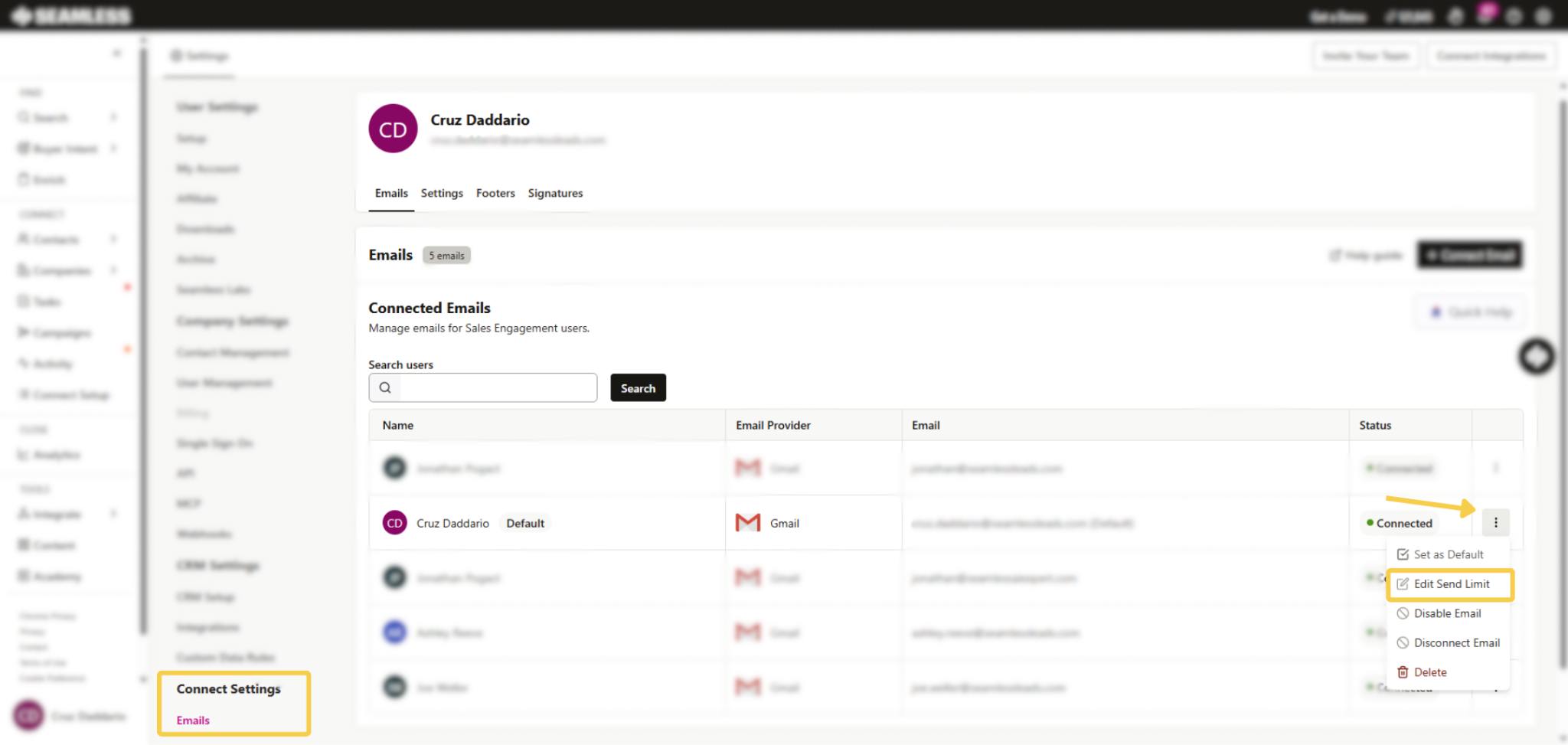
You can view and update your inbox limit under Settings → Emails.
What Is a Campaign Allocation?
When a campaign sends emails it uses a portion of the inbox’s daily limit. That portion is called the campaign’s allocation. It is basically the campaign’s share of the inbox’s sending bucket.
If your inbox can send 250 emails per day and you have two campaigns connected to it, you might give one campaign 150 and the other 100. Together they add up to 250 and neither one can take more than its share.
A campaign’s total daily send capacity is the combined total of its allocations across all connected inboxes. So if a campaign is connected to two inboxes with 200 each it can send up to 400 emails per day.
A Few Things to Know About Allocations
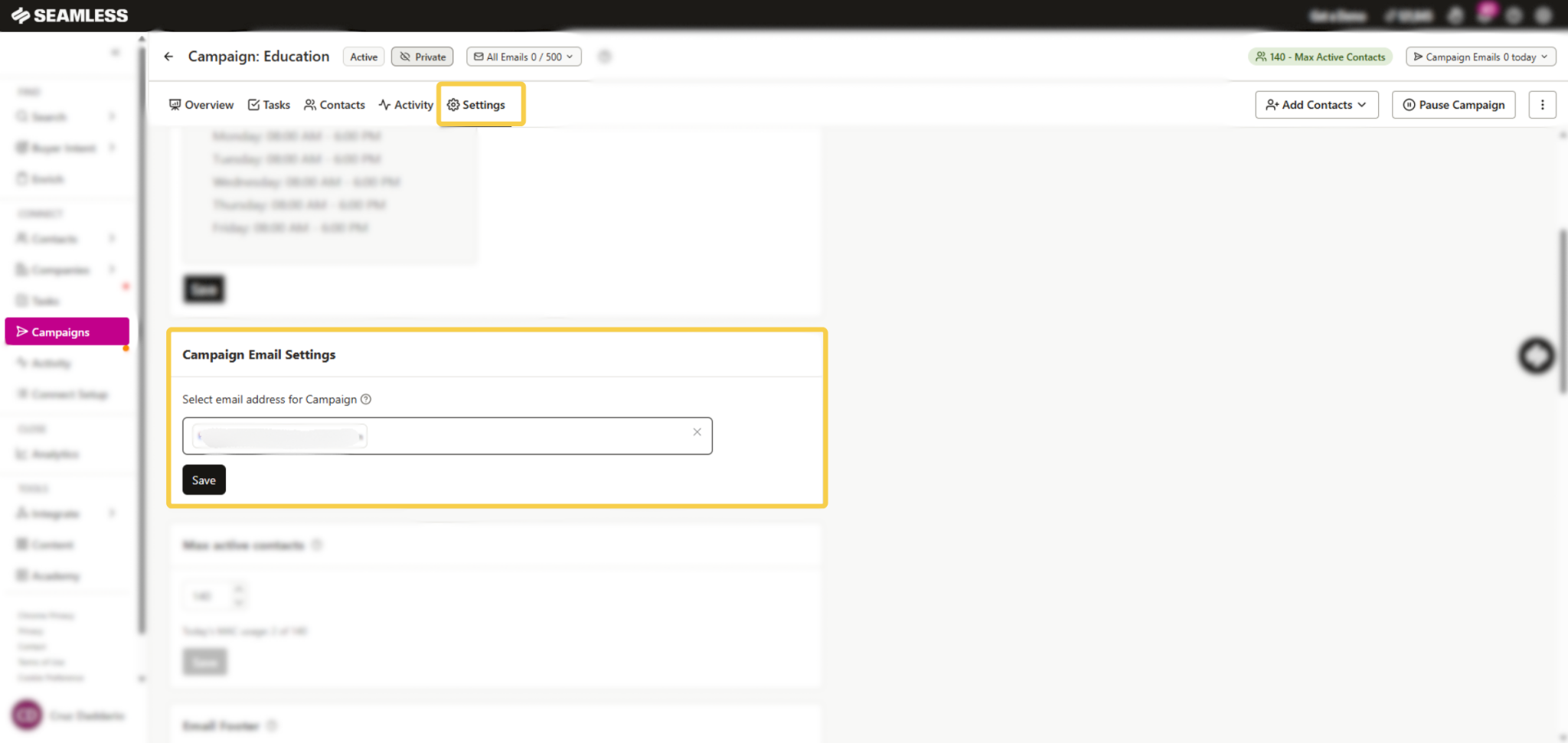
When you create a new campaign it starts with a default allocation of 50 emails per day on each connected inbox. You can adjust this inside the campaign from the Campaign Email Daily Limit window.
All of your active campaigns on one inbox cannot add up to more than that inbox’s daily limit. If you want to give one campaign more room you either need to raise the inbox’s limit or lower another campaign’s allocation to free up space.
Setting a campaign’s allocation to 0 means it stops sending from that inbox completely.
When a campaign is paused it keeps its allocation but does not use any of the inbox’s limit until you resume it. This means pausing a campaign frees up space for your other active campaigns.
What Happens When the Limit Is Reached
When an inbox hits its daily limit, emails stop going out for the day. Any emails that did not get sent stay Active and will go out as soon as the inbox has room again. If your sending schedule closes before they go out, they will send at the next opening.
Limits reset at midnight in the inbox owner’s timezone. If no timezone has been set, Eastern time is used.
One thing to keep in mind: one-off emails you send outside of campaigns also count toward the inbox’s daily limit. If you send a lot of individual emails during the day it can use up capacity that your campaigns were relying on.
Want to Send More Emails Per Day?
The best way to increase your daily sending volume is to add more inboxes to your campaign, not to push one inbox above its recommended limit. Two inboxes at 250 each gives you 500 emails per day while keeping each inbox safe and healthy.
Changing Your Limits
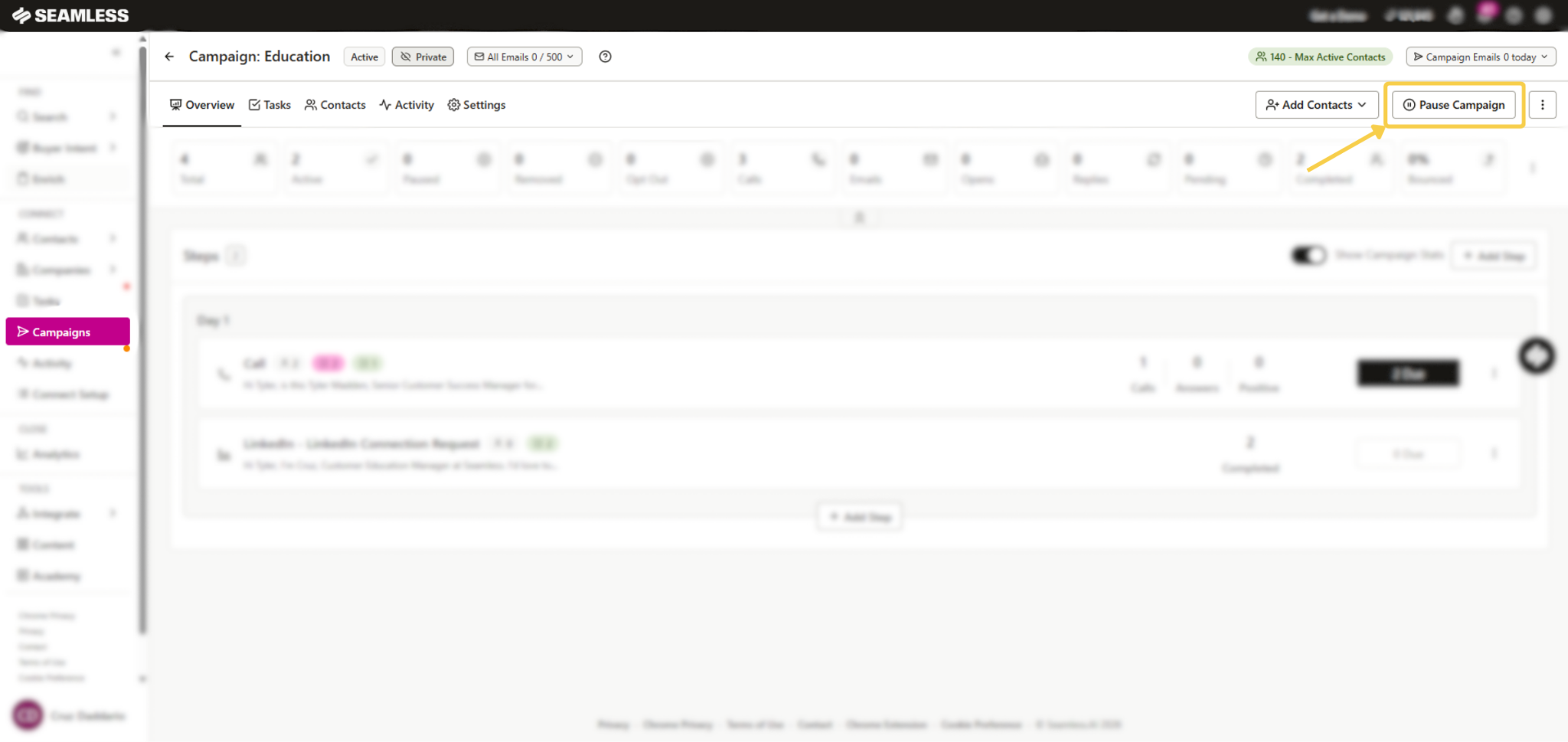
You can only change limits while a campaign is in Draft, Paused, or Completed status. If a campaign is Active the limit fields will be locked. Pause the campaign first, make your changes, then resume.
Quick Tips
- Keep each inbox at 250 emails per day or below to stay safe.
- Add more inboxes if you need to send more volume.
- Warm up new inboxes slowly before running them at full volume.
- Remember that one-off emails count toward the inbox’s daily limit too.
- Pause a campaign before trying to change its limits or inboxes.