Active and Pending Contacts Explained
If you have ever looked at a campaign and wondered why so many contacts are sitting in Pending or why some contacts seem to be moving faster than others, this article has the answers. Understanding how Active and Pending work is one of the most important things you can do to get the most out of your campaigns and know exactly what to expect each day.
Overview
When contacts are added to a campaign they will show one of two statuses — Active or Pending. Understanding what each one means and why contacts move between them helps you know exactly what your campaign is doing and when to expect emails to go out.
What Does Active Mean?
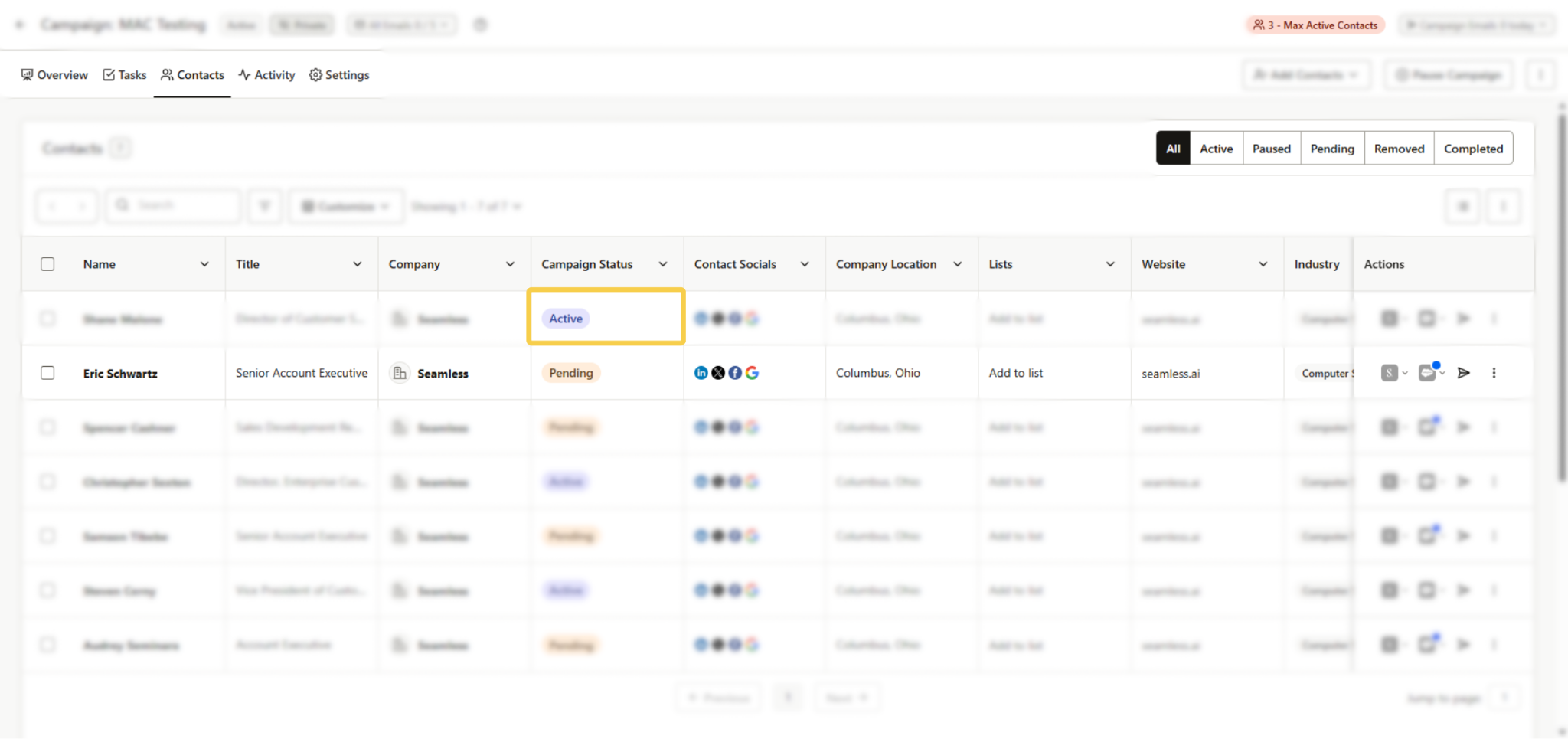
Active means the contact’s task is scheduled to go out today. If the step is an automatic email it will send during the campaign’s open hours. If the step is a manual email or a call it will show up in the rep’s Tasks list to be completed.
What Does Pending Mean?
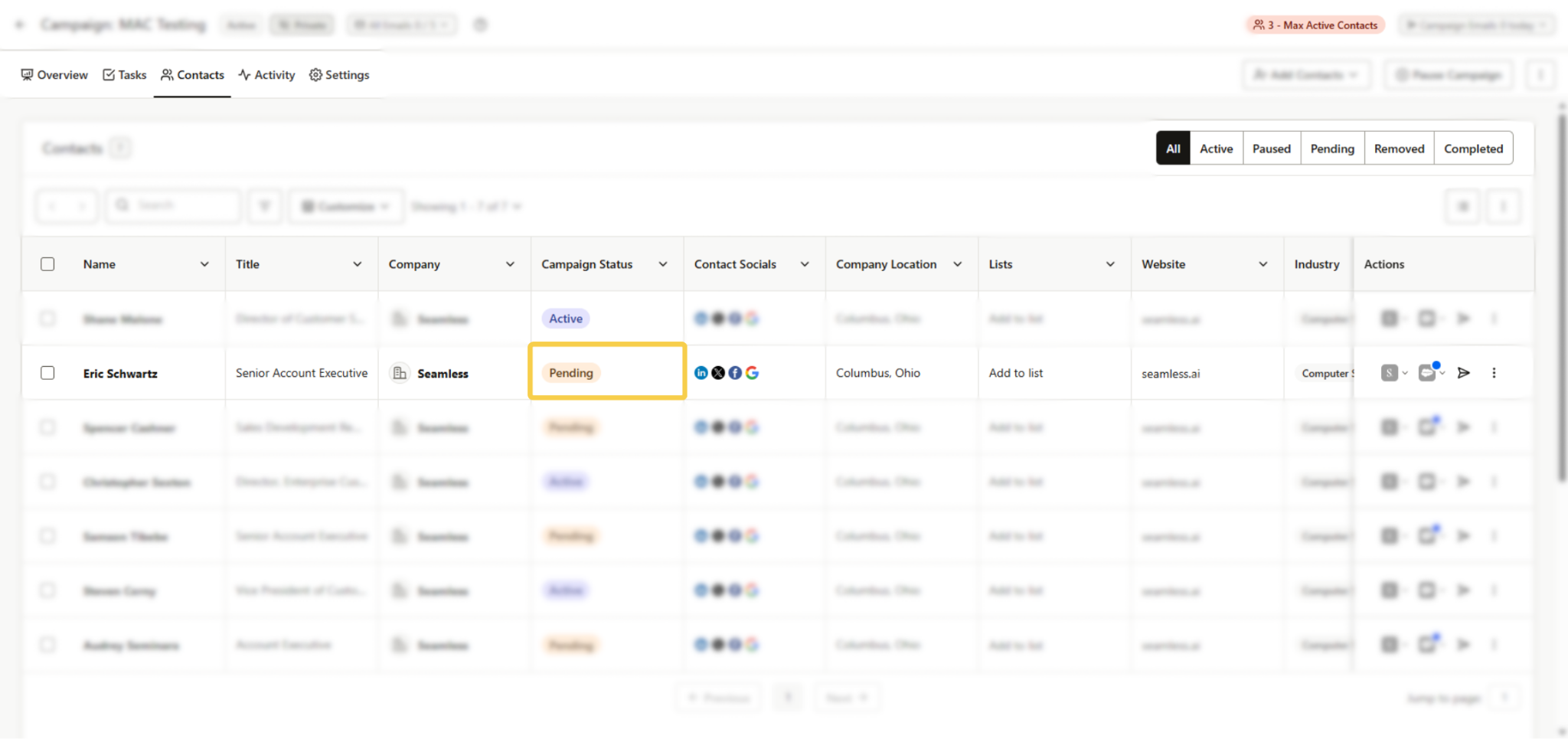
Pending means the contact is waiting. Nothing is scheduled yet and the contact will not appear in the Tasks list. A contact shows as Pending for one of two reasons.
Reason 1 — There is no room today
Today’s send limit or task limit is already full. Once a spot opens up the contact will move to Active. Think of it like a line at a coffee shop. When the barista finishes one order the next person in line steps up.
Reason 2 — Their next step is not due yet
The contact just finished a step and is waiting for their next one. For example if Step 1 goes out on Day 1 the contact will immediately show as Pending on the Day 3 step. They become Active when Day 3 arrives.
Why Are So Many Contacts Pending on Step 1?
This is one of the most common questions and the answer is almost always the same — it is expected and it is working correctly.
Contacts who are already partway through the campaign always go before new contacts. So if you have contacts on Step 2 or Step 3 they will use the day’s sending capacity first. New contacts waiting on Step 1 will move in as older contacts finish the campaign and free up space.
If you want new contacts to move through faster the best thing to do is add more inboxes or raise your campaign’s daily send allocation. We cover how to do that in the related articles below.
How Do Contacts Move from Pending to Active?
Contacts move from Pending to Active in the order they joined the campaign. The contact who joined first goes first. Contacts already partway through the campaign always go before brand new contacts no matter when they joined.
A spot opens up for a new contact when one of the following happens:
- A contact opts out of the campaign
- A contact is removed from the campaign
- A task is skipped or cancelled
Completing a task does not open a spot for a new contact that same day. The spot only becomes available the following day when the limits reset.
What About Contacts With Errors?
A contact whose task ran into an error is neither Active nor Pending. It will show up in the step’s error count instead. Errored tasks hold their spot in the campaign and do not let a new contact take their place until someone fixes or skips the error. We cover how to handle errors in the related articles below.
Quick Summary
- Active — Task is scheduled for today. Emails will send, calls will appear in Tasks.
- Pending — Contact is waiting. Either the limits are full or their next step is not due yet.
- Contacts already in the campaign go before new contacts.
- Contacts move from Pending to Active in the order they joined.
- A spot only opens mid-day if a contact opts out, is removed, or has a task skipped or cancelled.
- Errored contacts are separate from Active and Pending and hold their spot until resolved.