Pausing, Resuming, and Changing Campaign Settings
Pausing a campaign is the safest way to make changes without losing any progress or disrupting your contacts. This article covers what happens when you pause, how to make changes while the campaign is stopped, and what to expect when you hit resume so nothing catches you off guard.
Overview
Sometimes you need to stop a campaign mid-flight to make changes or fix an issue. Pausing is the safe way to do that. This article explains what happens when you pause a campaign, how to make changes while it is paused, and what to expect when you resume.
What Happens When You Pause a Campaign?
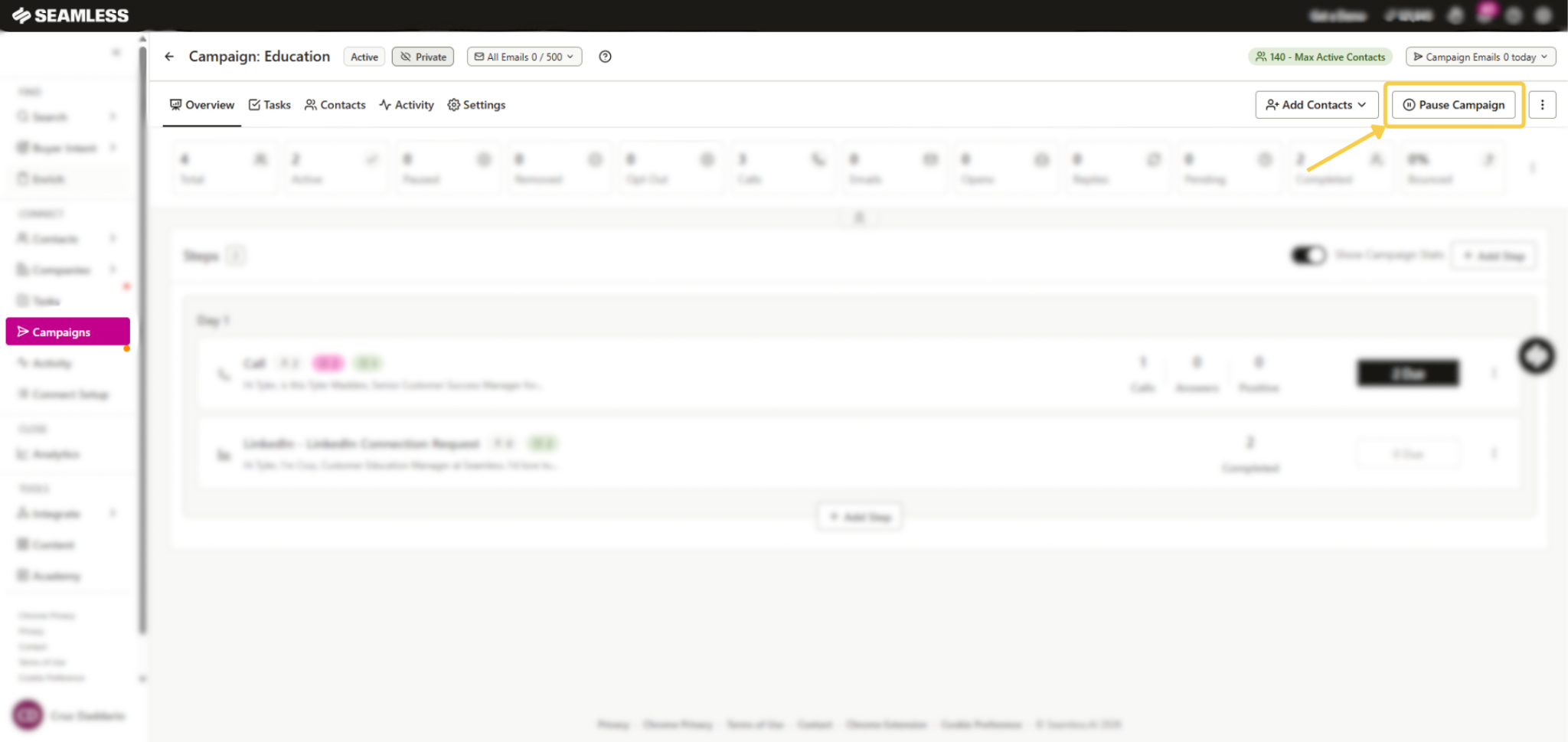
Pausing a campaign freezes everything in place. No emails go out, no calls appear in Tasks, and nothing moves forward. But here is the important part — nothing is lost either.
Every contact keeps their position in the campaign, their place in the send order, and their spacing between steps. Think of it like hitting pause on a movie. When you hit play again it picks up exactly where it left off.
What Happens When You Resume?
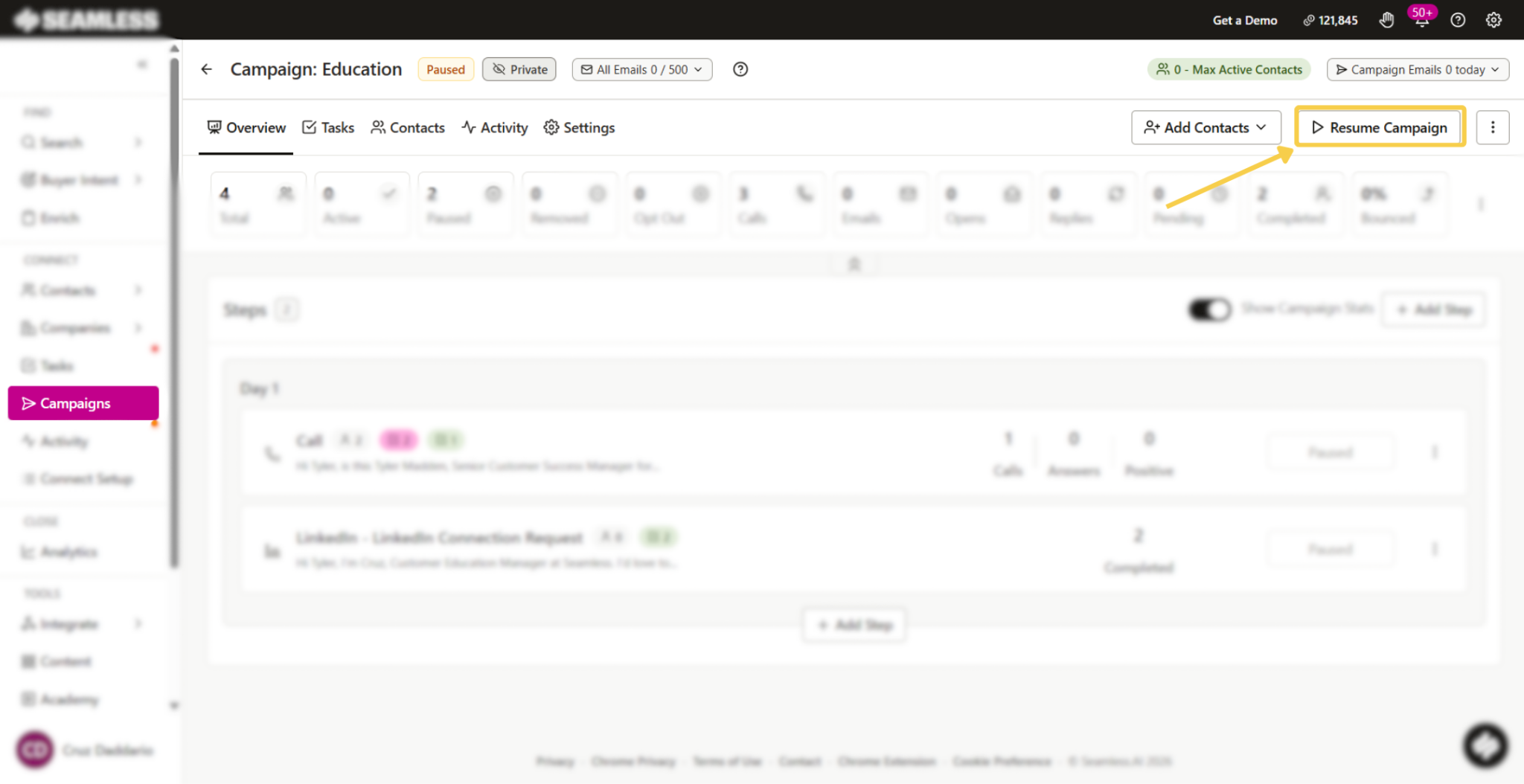
When you resume the campaign everything picks up right where it stopped. Contacts that were Active go back to Active. Contacts that were Pending go back to Pending in the same order they were in before.
Each contact’s next step day shifts forward by the number of days the campaign was paused so no one loses the gap between their steps. For example if a contact was one day away from their Day 3 step when you paused, they will still be one day away from it when you resume.
Why Do You Need to Pause Before Making Changes?
Daily task limits, campaign allocations, and the campaign’s inbox list can only be changed while a campaign is in Draft, Paused, or Completed status. If a campaign is Active all of those settings are locked.
This is by design. Changing limits or inboxes while a campaign is actively sending could cause contacts to be skipped, emails to go to the wrong inbox, or limits to be exceeded unexpectedly. Pausing first keeps everything clean and predictable.
Here is what you will see if you try to make changes while a campaign is Active:
- The daily limit fields will be greyed out.
- The inbox picker will be read-only.
- The Campaign Email Daily Limit window will show a banner telling you to pause the campaign first.
How to Make Changes to a Campaign
- Open the campaign and click Pause
- Make your changes to limits, inboxes, or settings
- Click Resume when you are ready
That is it. The campaign will pick up right where it left off with your new settings applied.
What Changes Can I Make While Paused?
While a campaign is paused you can make the following changes and see the impact right away before resuming:
Lowering a task limit — Some Active contacts on that day will move back to Pending. The most recently added contacts move back first.
Lowering an inbox allocation or removing an inbox — Active contacts assigned to that inbox move back to Pending first. Then if needed more Active contacts move back in the same order.
Raising a limit or adding an inbox — The oldest Pending contacts move to Active right away with in-flow contacts going first.
Pausing is also a great time to find and fix any errored tasks before resuming. We cover how to do that in the related articles below.
How to Make a Campaign Send Faster
If your campaign is moving slower than you want here is the simplest fix:
- Pause the campaign
- Raise the campaign’s daily send allocation or add more inboxes
- Resume
Adding more inboxes is almost always the better option over pushing a single inbox above its recommended 250 per day limit. More inboxes means more parallel sending without putting any single inbox at risk.
What About Paused Campaigns and Inbox Limits?
A paused campaign keeps its allocation but does not count against the inbox’s daily limit while it is paused. This means pausing a campaign temporarily frees up sending capacity for your other active campaigns.
One thing to note: if you need to change a paused campaign’s allocation you will need to do it from inside that campaign’s own Campaign Email Daily Limit window. Paused campaigns do not show up in the inbox’s Email Send Limit window.
Quick Summary
- Pausing freezes the campaign without losing any progress.
- Every contact keeps their position and spacing when you resume.
- Limits and inboxes can only be changed while a campaign is Paused, Draft, or Completed.
- Lowering limits moves some Active contacts back to Pending.
- Raising limits or adding inboxes moves Pending contacts to Active right away.
- A paused campaign does not count against the inbox’s daily limit.
- To make a campaign send faster, pause it, raise the allocation or add inboxes, then resume.