Controlling Contact Data for Your Team with Variable Credits
Want your team to pull only the data it needs? This article shows Owners and Admins how to take control of what reps research and what it costs. You will see how to set a default your team can still adjust, lock the setting so everyone stays consistent, and shut off email or phone research for the whole organization. It also covers what your reps see in each case and which setup fits your team.
Overview
With variable credits, you decide what data your team pulls and what it costs. As an Owner or Admin, you can set a default for your whole organization, lock it so no one can change it, or turn off email or phone research for everyone. This article explains each control, what your team sees, and how to choose the right setup.
What You Can Control
- Your own data option: Choose Full Contact, Emails only, or Phones only for your own finds.
- An org default: Apply your choice to everyone, while still letting reps change it.
- An org lock: Enforce your choice so no one can change it.
- A data type shutoff: Disable email or phone research for the whole organization.
Where to Find These Settings
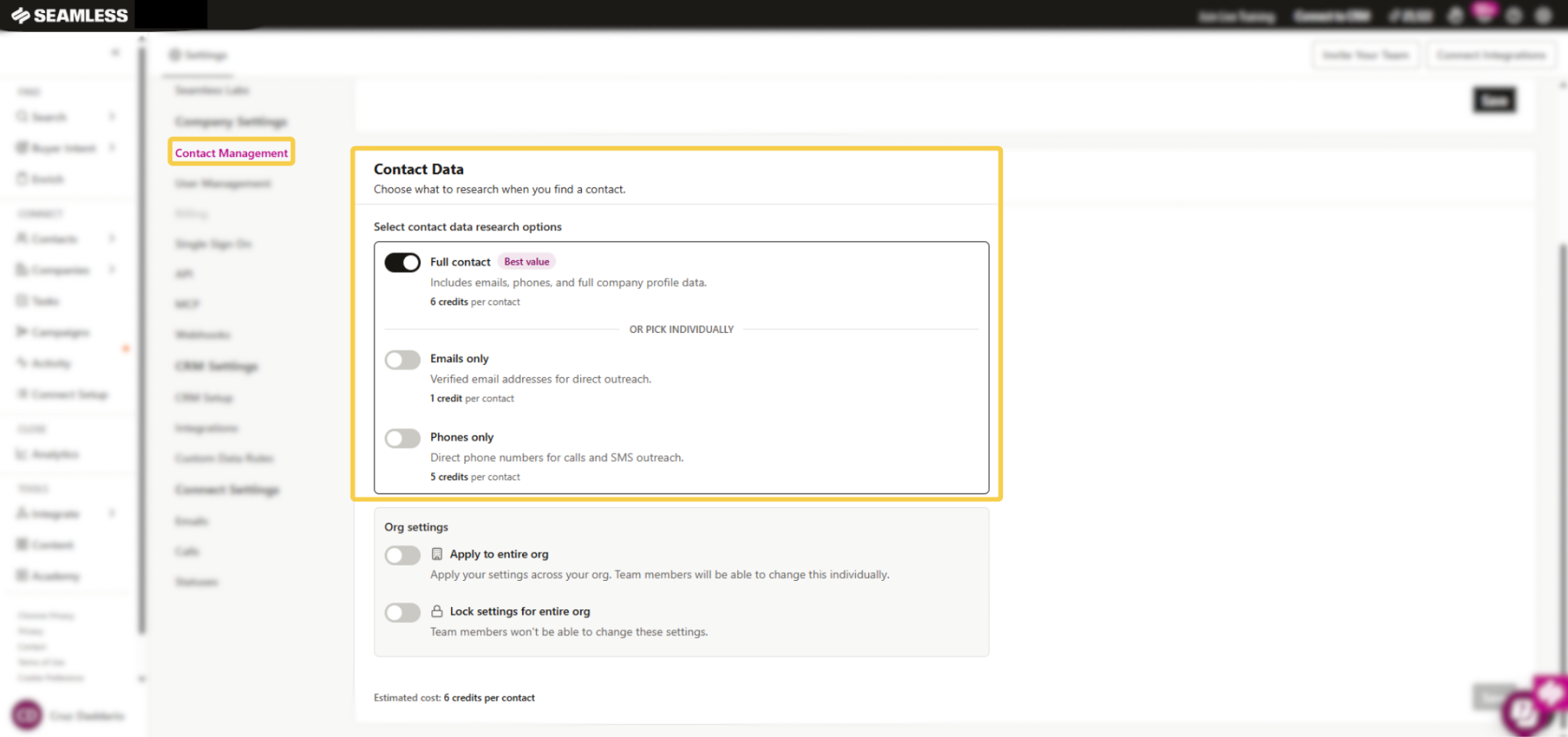
- Go to Settings.
- Under Company Settings, click Contact Management.
- Scroll to the Contact Data section.
Owners and Admins see the full set of controls. Members only see the Contact Data options, and only for themselves.
Choose a Data Option
You can choose one of three options. The estimated cost per contact shows at the bottom of the section before you save.
- Full contact (6 credits per contact): Emails, phones, and full company profile data.
- Emails only (1 credit per contact): Verified email addresses for direct outreach.
- Phones only (5 credits per contact): Direct phone numbers for calls and SMS outreach.
Select your option and click Save. The setting applies to your future finds. It does not change contacts you have already researched.
Set an Org Default or Lock the Setting
Below the data options, Owners and Admins see an Org settings box with two controls.
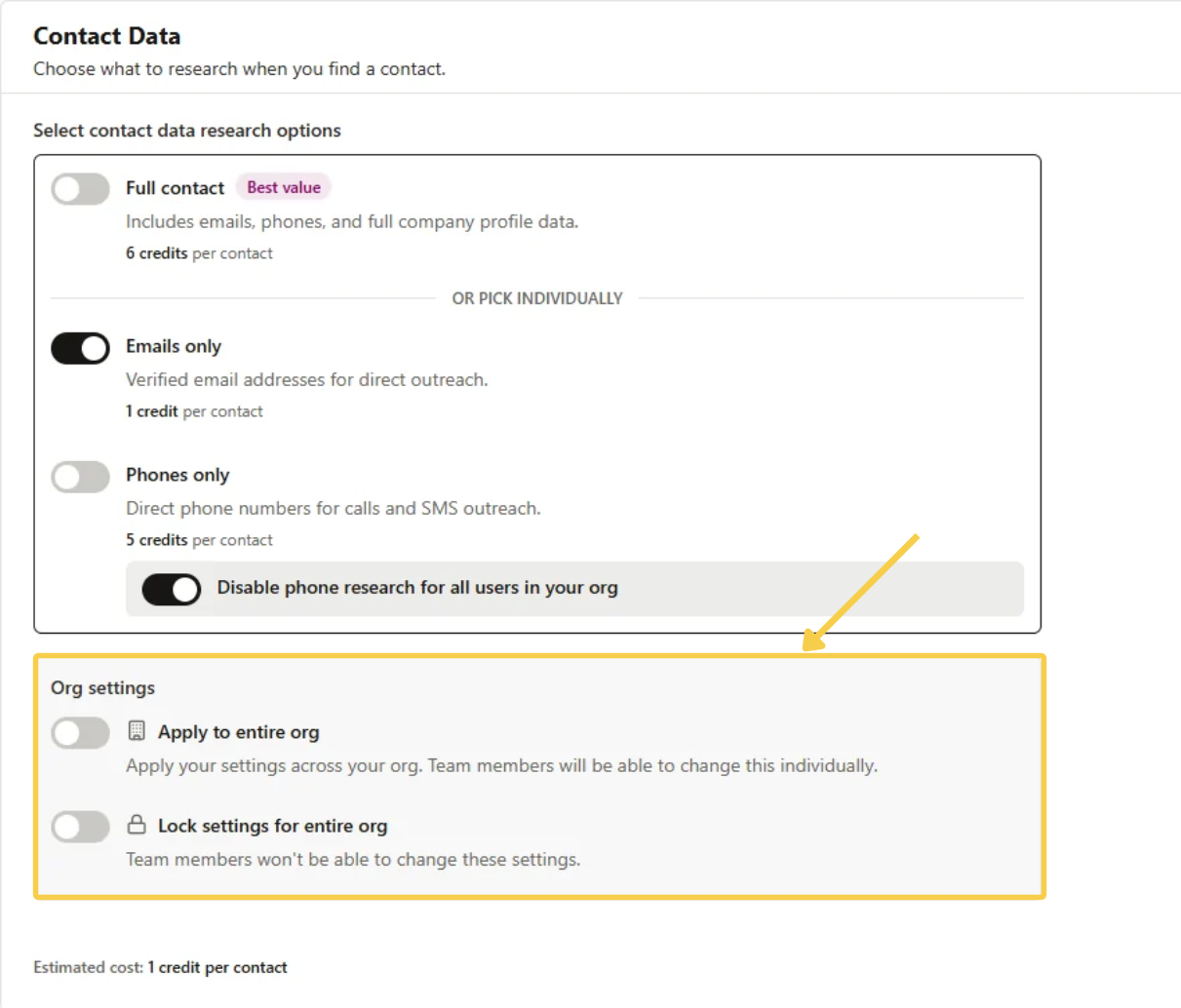
Apply to entire org
When you click Save, your choice replaces every member’s current choice. Team members can still change their own setting afterward. Use it to set a starting point for the team.
Lock settings for entire org
Your choice is enforced for everyone. Members cannot change it, and they see their options greyed out with the message “Contact your admin if you have questions.” Use it when everyone should stay on the same option.
To use either one:
- Select the data option you want.
- Turn on Apply to entire org and/or Lock settings for entire org.
- Click Save.
Turn Off Email or Phone Research for Everyone
If you never want your team spending credits on one data type, you can shut it off for the whole organization.
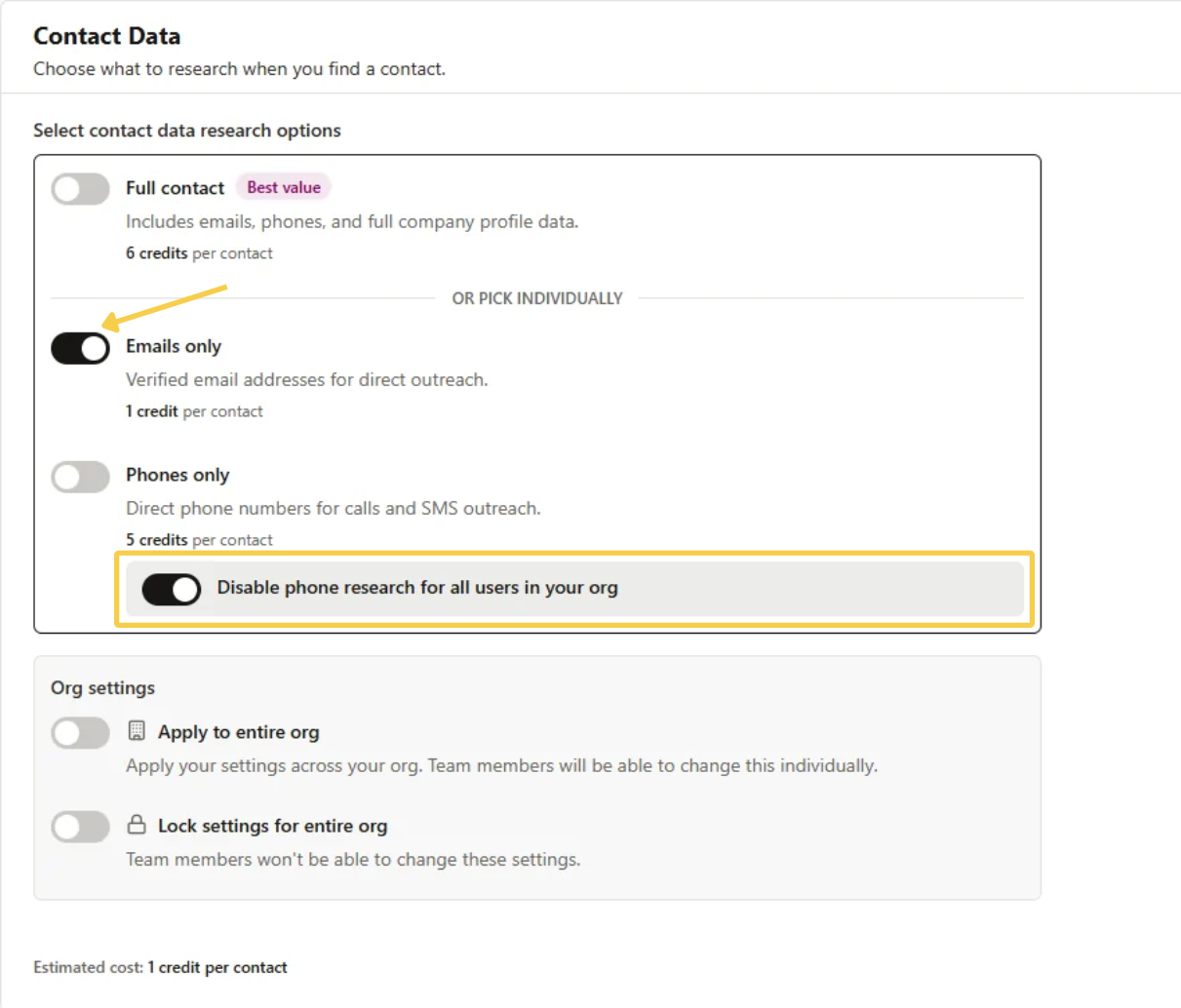
- Select Emails only or Phones only.
- A switch appears under the other data type.
- If you chose Emails only, it says Disable phone research for all users in your org.
- If you chose Phones only, it says Disable email research for all users in your org.
- Turn the switch on and click Save.
Nobody in your organization can research that data type until you turn the switch back off and save. The matching Find options are hidden, and members see the switch disabled. This works on its own, so you do not need to lock settings for it to apply.
What Your Team Sees
- Settings not locked: Members can choose any available option and click Save.
- Settings locked: Members see their options greyed out with a message to contact their admin.
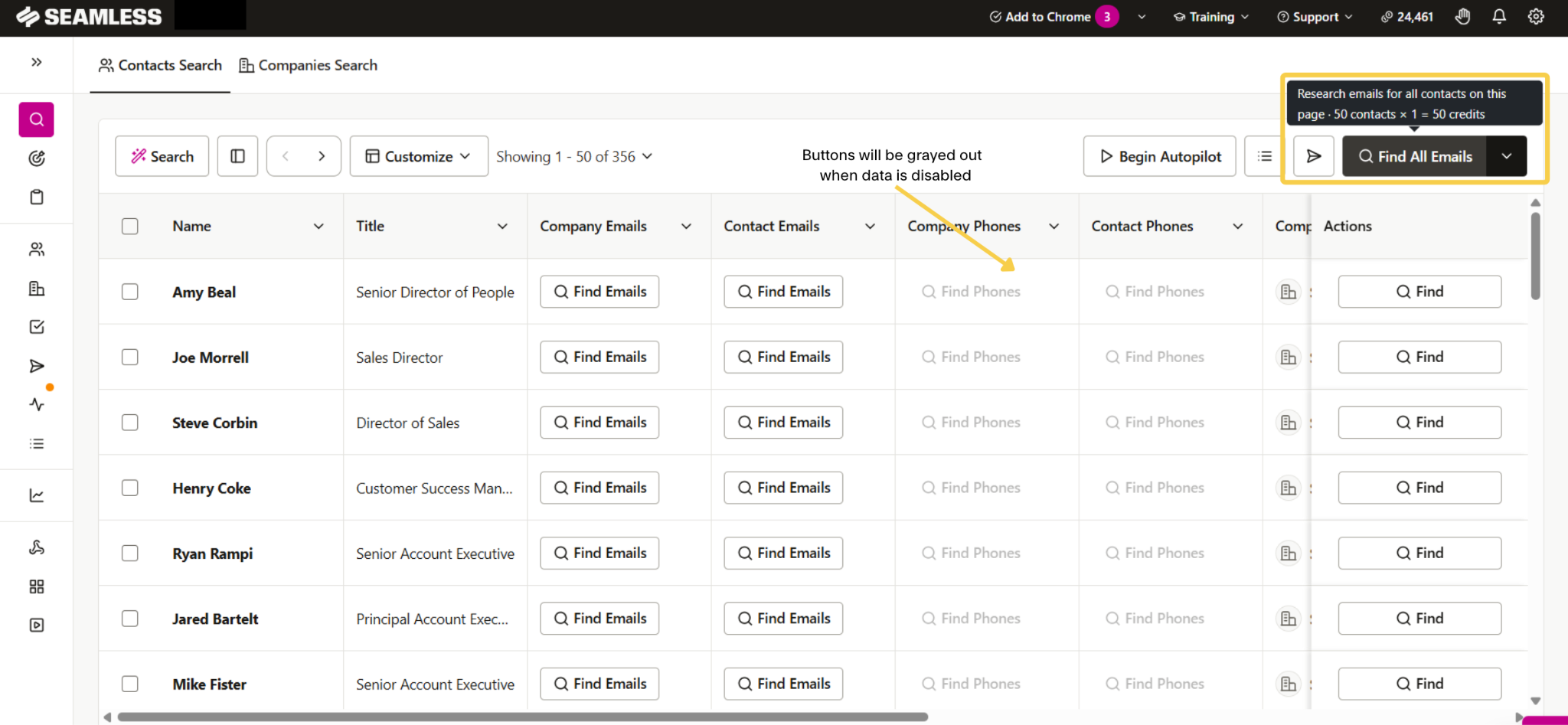
- A data type disabled: The Find options for that data type are hidden, and the switch shows as disabled.
How Your Settings Affect Find Buttons
The saved Contact Data setting decides what each of these returns and charges:
- Find
- Find Selected
- Find All
- Autopilot
- Enrich
The header Find button follows the setting. Emails only shows Find All Emails. Phones only shows Find All Phones. Full contact shows Find All. Hovering over a Find button shows its cost, and Find All and Find Selected show the total before they run.
Users can still click Find Emails or Find Phones on a single contact, even if their own setting leaves that data type out. They pay that data type’s price. The exception is a data type you disabled for the whole organization, which nobody can research.
If someone finds emails only and later needs the phone for a contact, they click Find again and pay only for the phone.
Which Setup Is Right for You?
- Reps pick what they need, with a starting point: Choose your default and turn on Apply to entire org.
- Everyone on the same option: Choose your option and turn on Lock settings for entire org.
- Never spend credits on phones: Choose Emails only and turn on Disable phone research for all users in your org.
- Never spend credits on emails: Choose Phones only and turn on Disable email research for all users in your org.
If Your Plan Is Locked to Full Contact
Plans with credits that refresh every day, such as the legacy 1,000 credits per day plan, are locked to Full Contact at 6 credits per contact. You can see the Contact Data section, but the options are greyed out and the Org settings box does not appear. To explore plans that allow more control, reach out to your Seamless account rep or contact our support team.
Best Practices
- Match the setting to your outreach. Use Emails only for email campaigns and Phones only for call blitzes.
- Check the estimated cost before you save. It shows at the bottom of the Contact Data section.
- Use Apply, not Lock, if you want flexibility. Lock is best when you need everyone to be consistent.
- Tell your team before you lock settings. Reps who can’t change their option will see a message to contact you.
Frequently Asked Questions
Q: Can I change these settings at any time?
A: Yes. Return to Settings, Company Settings, Contact Management, and update your choice. The change applies to future finds.
Q: Will changing the setting affect contacts we already researched?
A: No. It only affects future research.
Q: Who can see and change these controls?
A: Owners and Admins. Members only see the Contact Data options, and only for themselves.
Q: What is the difference between Apply to entire org and Lock settings?
A: Apply sets everyone’s choice, but members can change theirs afterward. Lock enforces your choice so members cannot change it.
Q: Do the Disable switches require Lock?
A: No. Disabling a data type works on its own.
Q: Our reps can’t change their setting. Why?
A: Your admin either locked settings for the organization or disabled a data type for everyone. Only an Owner or Admin can change it.
Q: Why did our default change to Phones only or Emails only?
A: Some organizations have an arrangement to skip email or phone research, and it carried over as the organization default. An Owner or Admin can change it in Contact Management.
Q: Can I see how many credits each rep uses, or email versus phone spend?
A: Not yet. You can manage credit allowances for users in User Management.
Q: Why can’t I see the Org settings box?
A: It appears for Owners and Admins on plans that can choose their data option. Plans locked to Full Contact don’t have it.