MCP Integration
Learn how to connect Seamless to supported AI tools, manage MCP connections, search and enrich contacts, build prospect lists, launch outbound workflows, and use Seamless through natural-language prompts.
The Seamless MCP integration allows you to access supported Seamless capabilities directly inside compatible AI tools such as ChatGPT, Claude, and other MCP-enabled platforms.
MCP stands for Model Context Protocol. It is a standardized way for AI tools and agents to connect with external platforms, data sources, and actions.
In simple terms, MCP helps your AI assistant securely use supported Seamless actions on your behalf.
Instead of switching between Seamless and your AI workspace, you can use natural-language prompts to:
- Search for companies and contacts
- Research and enrich records
- Build and save prospect lists
- Identify job changes
- Review campaign activity
- Draft personalized outreach
- Launch multistep email campaigns
- Send and log activities
- Access Daily Digest information
- Support outbound and AI-agent workflows
Seamless provides an MCP dashboard where you can connect supported AI tools, view your current connections, access setup instructions, and manage your MCP integrations.
Available actions may vary based on your Seamless credit allowance, user permissions, enabled features, MCP configuration, and connected AI tool.
Why Use Seamless MCP?
Seamless MCP helps users move from manual prospecting processes to faster, AI-assisted workflows.
With Seamless MCP, you can:
- Work directly inside your AI tool: Search, enrich, organize, and act on prospect data without constantly switching applications.
- Use natural-language prompts: Ask your AI assistant to find companies, identify decision-makers, enrich records, build lists, or review campaign activity.
- Move faster from research to action: Find accounts, research contacts, save prospects, prepare messaging, and complete supported outbound activities from one conversation.
- Support agent-based workflows: Allow approved AI agents to use supported Seamless actions as part of a broader workflow.
- Connect workflows across tools: Use Seamless data alongside other supported CRM, buyer-intent, productivity, or outbound systems.
What You Can Do With Seamless MCP
Search for Companies and Contacts
Use Seamless MCP to find companies and contacts that match your target criteria.
Search criteria may include:
- Industry
- Company size
- Revenue
- Geography
- Technology
- Job title
- Seniority
- Department
- Other ideal customer profile criteria
Example prompt: Find B2B SaaS companies in the United States with 100–500 employees. Then find VP-level sales contacts at each company and return the results in a table.
Build and Save Prospect Lists
Where supported, you can ask your AI assistant to create a new Seamless list, save records to an existing list, or organize prospects by campaign, persona, segment, or account group.
Example prompt: Find 50 VP-level sales leaders at B2B SaaS companies with 100–500 employees and save them to a Seamless list called “SaaS Sales Leaders.”
Research and Enrich Contact or Company Data
Use Seamless MCP to research contacts and companies directly from your AI workflow.
Depending on the record and your account access, available information may include:
- Verified emails
- Direct-dial or mobile phone numbers
- Job titles
- Company information
- LinkedIn URLs
- Location and firmographic data
Example prompt: Find the VP of Sales and Head of Marketing at these companies. Include name, title, company, email, phone number, and LinkedIn URL where available.
Search, research, and enrichment actions may use Universal Credits.
Prepare Outbound Messaging
Use returned contact and company information to prepare personalized outreach.
You can ask your AI assistant to:
- Draft email messaging
- Create follow-up steps
- Personalize outreach by account or persona
- Prepare campaign ideas
- Summarize relevant prospect information
Example prompt: Draft a three-step outbound email sequence for these contacts focused on improving pipeline visibility. Keep the messaging concise and relevant to sales leaders.
Review all messaging before sending it or adding it to an active campaign.
Support Connect Workflows
Users with access to the applicable Seamless Connect features may be able to use MCP to:
- Create multistep email campaigns
- Launch campaigns
- Draft and send emails
- Review campaign activity
- Summarize campaign performance
- Send and log activities
Example prompt: Summarize the performance of my active campaigns and identify which steps have the lowest reply rates.
Review campaign settings, recipients, and messaging before launching or sending communications.
Support Multistep Workflows
Seamless MCP can help you move from account research to contact discovery and outbound activity.
For example:
- Find companies matching your target criteria.
- Identify decision-makers at those companies.
- Research the selected contacts.
- Save approved contacts to a Seamless list.
- Prepare personalized messaging.
- Create or launch a campaign where supported.
- Review and log the resulting activity.
The exact actions available depend on your MCP configuration, Seamless access, and connected AI tool.
How Seamless MCP Works
A typical MCP workflow follows this process:
- You enter a natural-language prompt in your AI tool.
- The AI assistant determines which available Seamless action is required.
- Seamless searches, researches, saves, organizes, or acts on records based on your request.
- Results are returned inside your AI conversation.
- You review the results and provide your next instruction.
For example, you could begin with: “Find VP-level marketing contacts at B2B SaaS companies with 100–500 employees.”
After reviewing the results, you could continue with: “Research the first 25 contacts and save them to a list called ‘Mid-Market Marketing Leaders.’”
How to Connect Seamless MCP
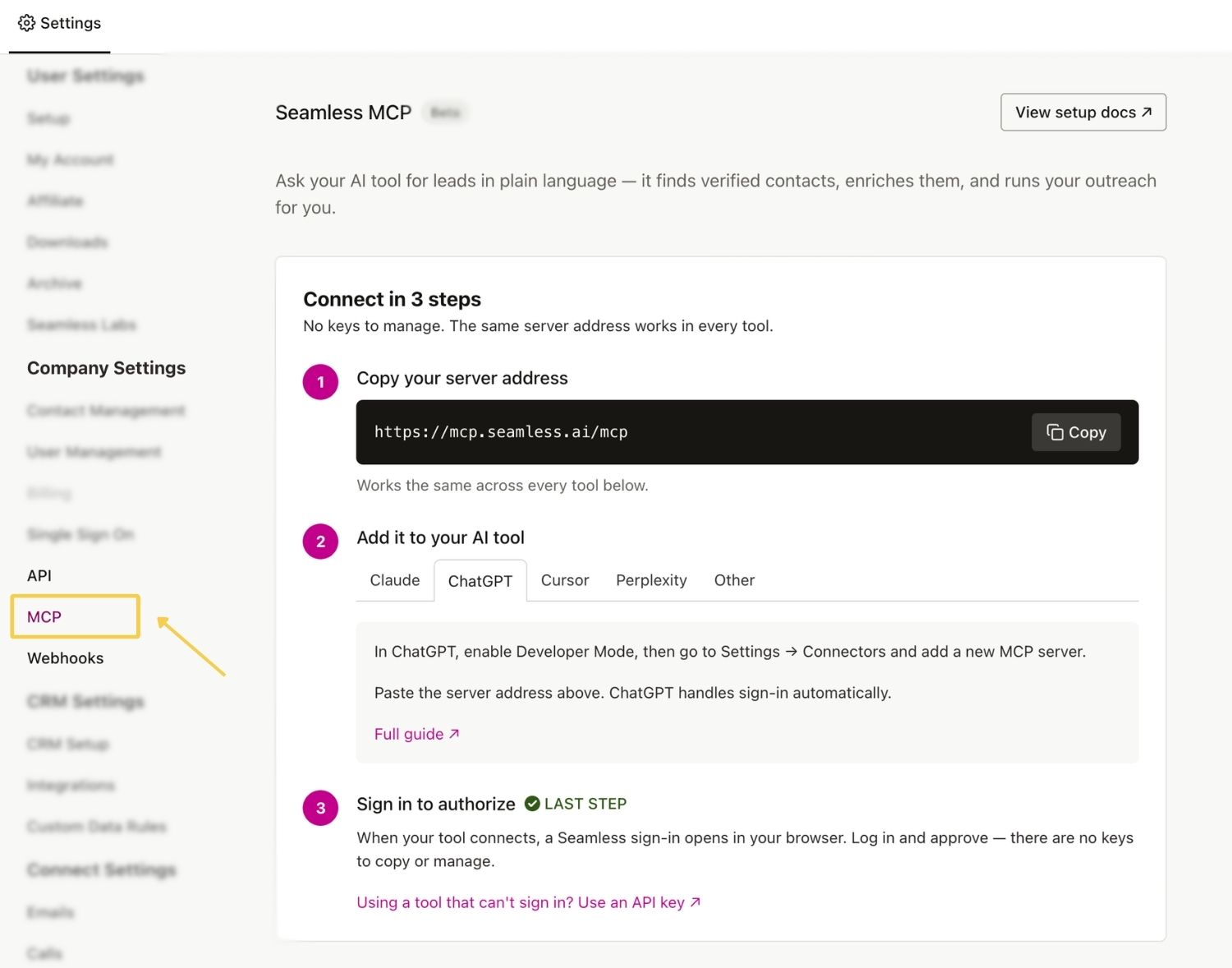
Step 1: Open the MCP Dashboard
Open Settings in Seamless and select MCP.
The MCP page will display the connection process, Seamless MCP server address, supported AI tools, sample prompts, and documentation.
Step 2: Copy the MCP Server Address
Copy the MCP server address displayed on the page.
You will add this address to your AI platform as a remote HTTP MCP server, connector, integration, or similar connection type.
Always copy the current server address directly from the Seamless MCP page.
Step 3: Select Your AI Tool
Select the AI platform you want to connect.
The MCP dashboard provides individual setup instructions for supported tools, including:
- Claude
- ChatGPT
- Cursor
- Perplexity
- Other supported MCP-enabled platforms
Follow the instructions displayed for your selected platform. The exact setup process may vary depending on the AI tool.
Step 4: Sign In and Test the Connection
From the AI platform, sign in to the correct Seamless account and approve the connection. If direct authentication is supported, no API key is required.
Return to the MCP dashboard to confirm the connection, review permissions, and run a small test.
Example prompts:
- What Seamless actions can you access?
- Find five B2B SaaS companies in the United States.
- Create a Seamless list called “MCP Test List.”
Review the returned results, Universal Credit usage, and records saved in Seamless before increasing the size of the workflow.
View and Manage MCP Connections
The MCP dashboard provides a central location for connecting and managing supported AI tools.
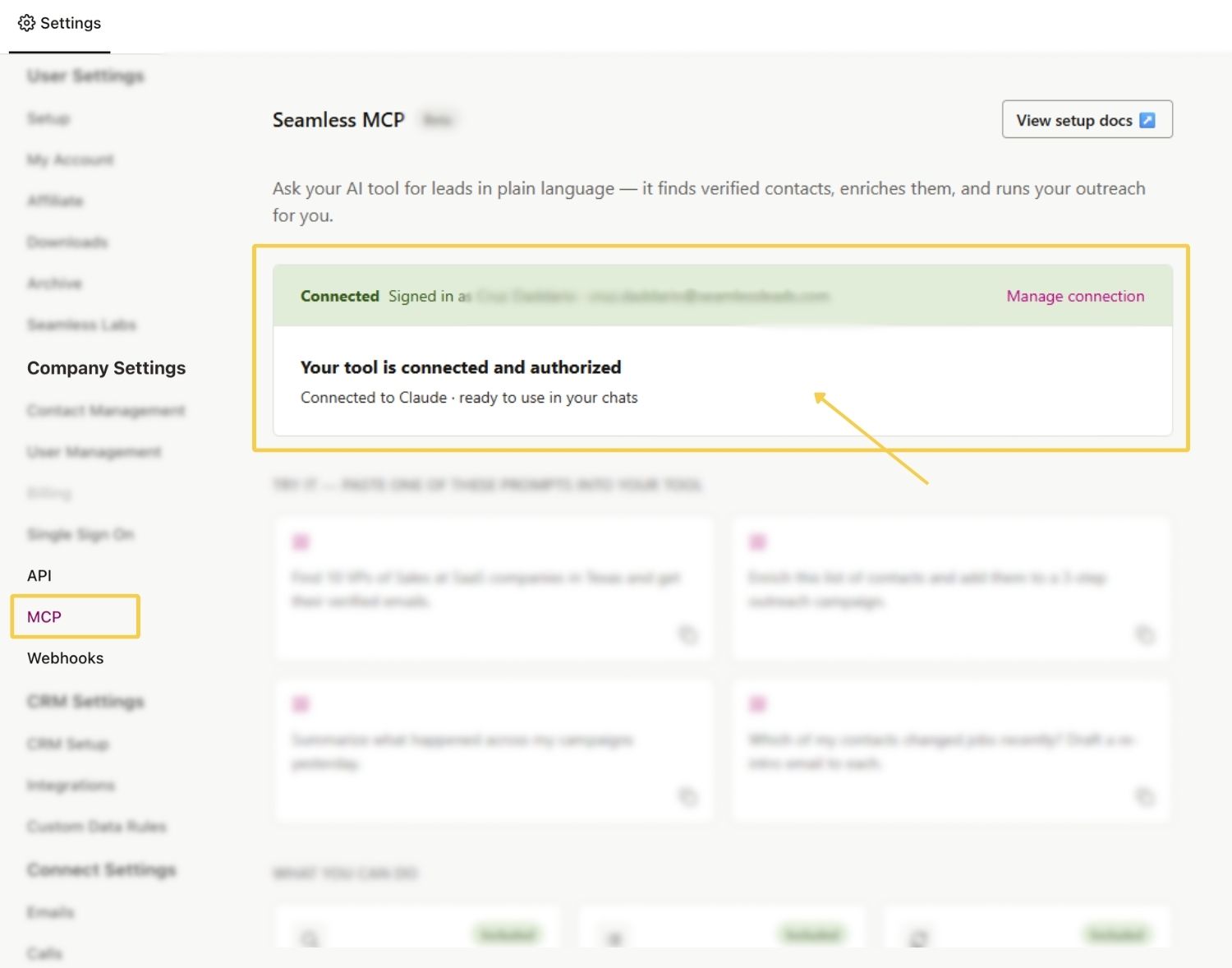
From the MCP page, you can:
- View, connect, and monitor MCP Integrations
- Access platform-specific connection instructions
- Copy sample prompts
- Access MCP documentation
To open the MCP dashboard:
Sign in to Seamless -> Open Settings -> Select MCP
If you do not currently have an MCP integration, the page will display a guided three-step connection process.
When an MCP API Key Is Required
An API key is not required when the AI tool supports direct Seamless sign-in and authentication.
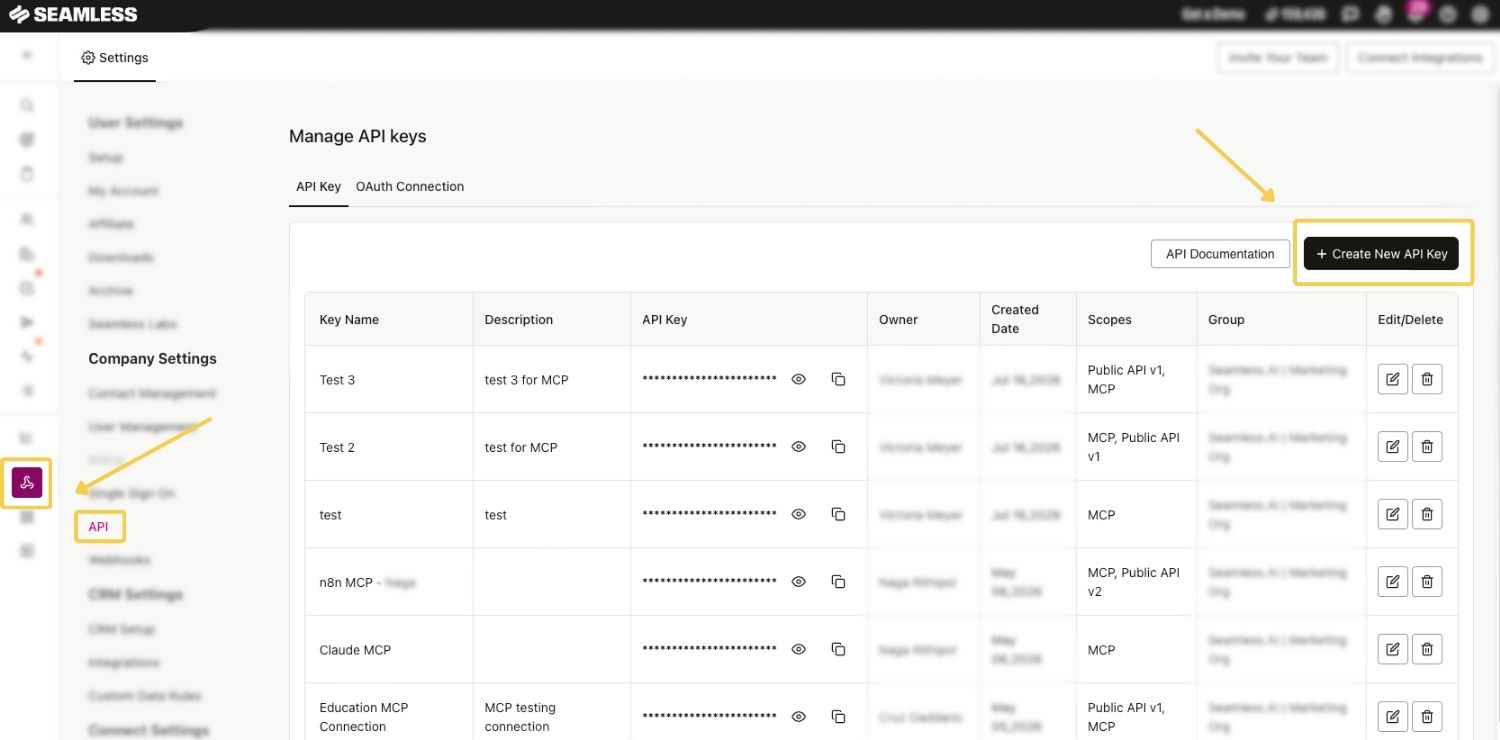
You may need to create an MCP API key when:
- The AI tool does not support direct Seamless sign-in
- You are creating a custom MCP implementation
- You are connecting a custom application or agent
- The platform specifically asks for an API key
- Your approved workflow also uses the Seamless Public API
To create an MCP-scoped API key:
- Open the API page from the left-hand navigation or through Settings.
- Select Create New API Key.
- Choose API Key as the connection type.
- Enter a clear connection name.
- Add a description explaining how the connection will be used.
- Select the MCP scope. (Select the Public API scope only if the approved workflow requires it.)
- Choose the appropriate user, group, or organization assignment when available.
- Save the connection.
- Copy the API key and store it securely.
Treat your API key like a password. Do not include it in screenshots, public repositories, shared documents, or unsecured messages.
For more information about API-key ownership, permissions, credits, rate limits, and connection management, review the Seamless API Overview and Getting Started article.
Use the Sample Prompts
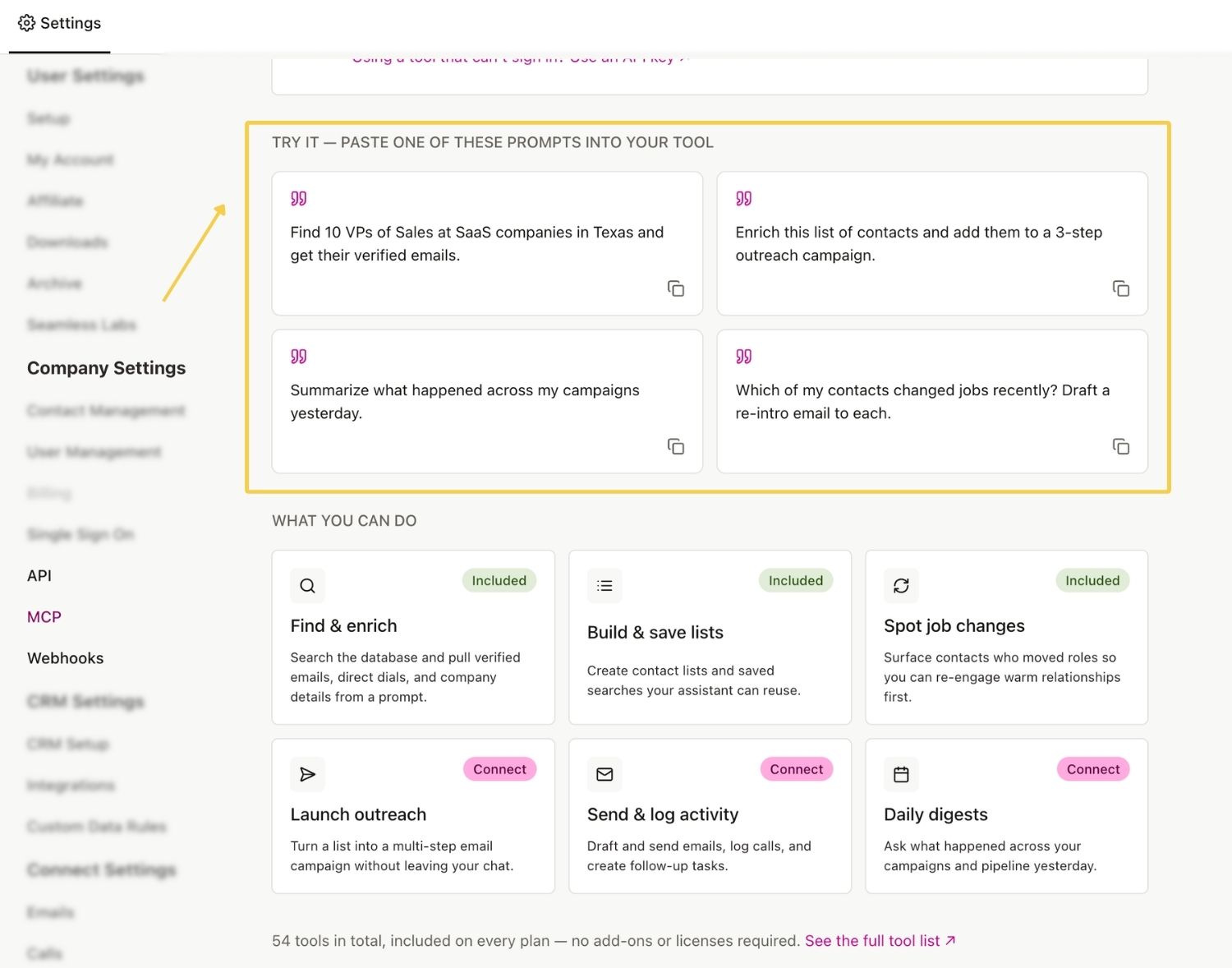
The MCP dashboard includes sample prompts that you can copy and use with your connected AI tool.
Sample prompts may cover workflows such as:
- Finding contacts in a particular location
- Researching contact email addresses
- Enriching a list of contacts
- Creating a targeted prospect list
- Summarizing campaign activity
- Reviewing campaign performance
- Identifying job changes
- Preparing outbound messaging
You can copy a sample prompt as written or modify it based on your specific workflow.
Best Practices
Clear and specific prompts generally produce better results.
Include details such as:
- Target industry
- Company size
- Revenue
- Geography
- Job titles
- Seniority
- Department
- Number of contacts or companies needed
- Desired list name
- Whether records should be returned, researched, or saved
- Preferred output format
General Prompt - “Find sales leaders at software companies.”
More Specific Prompt - “Find 50 VP-level sales leaders at B2B software companies in the United States with 100–500 employees. Return the results in a table with name, title, company, location, and LinkedIn URL.”
Review Results Before Researching
Searching for records and researching or enriching them may be separate actions.
When you want greater control over credit usage, ask the AI tool to return potential matches before researching or enriching them.
Complete Complex Workflows in Stages
For more complex workflows, complete and review each major step before moving to the next.
For example:
- Search for companies.
- Review the company results.
- Find relevant contacts.
- Review the contacts.
- Research or enrich approved contacts.
- Save the records.
- Prepare or launch outbound activity.
This provides greater control over the records selected, actions completed, and Universal Credits used.
Review Outbound Actions
Before sending an email, launching a campaign, or logging an activity, ask the AI tool to summarize:
- The contacts being included
- The messaging being used
- The campaign steps
- The actions it plans to complete
For more complex workflows, complete and review each major step before moving to the next. This gives you greater control over the records researched and the Universal Credits used.
Frequently Asked Questions
What is MCP? - MCP stands for Model Context Protocol. It allows compatible AI tools and agents to connect with external platforms and use their supported data and actions.
Is MCP the same as an API? - No. A traditional API allows systems to communicate through documented endpoints and structured requests. MCP provides a standardized way for AI tools to discover and use supported actions. APIs may power some MCP capabilities behind the scenes.
Which AI tools can use Seamless MCP? - Seamless MCP can be used with supported AI tools and environments that allow MCP connections or compatible connectors. Availability may depend on the AI tool, plan, workspace settings, and administrator permissions.
Can Seamless MCP save results into Seamless? - Yes, where the applicable save or list actions are enabled. Available actions depend on your Seamless access, MCP configuration, and connected AI tool.
Can I view results inside the AI tool? - Yes. You can ask your AI assistant to return contacts, companies, tables, summaries, or recommended next steps directly in the conversation.
Does Seamless MCP use Universal Credits? - Applicable search, research, and enrichment actions may use Universal Credits. Credit usage depends on the action being performed.
Do I need to know how to code? - Most end users do not need to write code after the connection is configured. Initial setup may require assistance from an Owner, Authorized Admin, RevOps, IT, or another technical team member.