
Connect Seamless to Claude
This article explains how to connect Seamless to Claude with MCP, configure the Seamless connector, manage tool permissions, and use Claude to complete Seamless workflows through conversational prompts.
Seamless can be connected to Claude using MCP, giving users the ability to access Seamless data and actions directly inside Claude. Once connected, users can search contacts and companies, review campaigns, check credits, draft emails, manage lists, and more without leaving Claude.
This article walks through how to connect Seamless to Claude, what tool permissions are available, and best practices for getting the most out of the integration.
What MCP with Claude Allows You To Do
Connecting Seamless to Claude gives users a more conversational way to work inside Seamless. Instead of clicking through multiple pages, users can ask Claude to help with tasks like:
- finding contacts or companies
- reviewing campaign performance
- checking credits
- drafting outreach
- creating or updating campaigns
- managing lists, templates, tasks, and saved searches
- researching contacts and companies
The more clearly you explain what you want Claude to do, the more helpful and accurate the result will be.
How to Connect Seamless Directly in Claude
Claude allows you to connect Seamless directly through its Connector Directory. Once connected, Claude can use Seamless within supported conversations to help you access Seamless capabilities without requiring you to manually configure an MCP server URL.
This article walks through how to connect the Seamless direct connector in Claude.
Open the Connector Directory in Claude
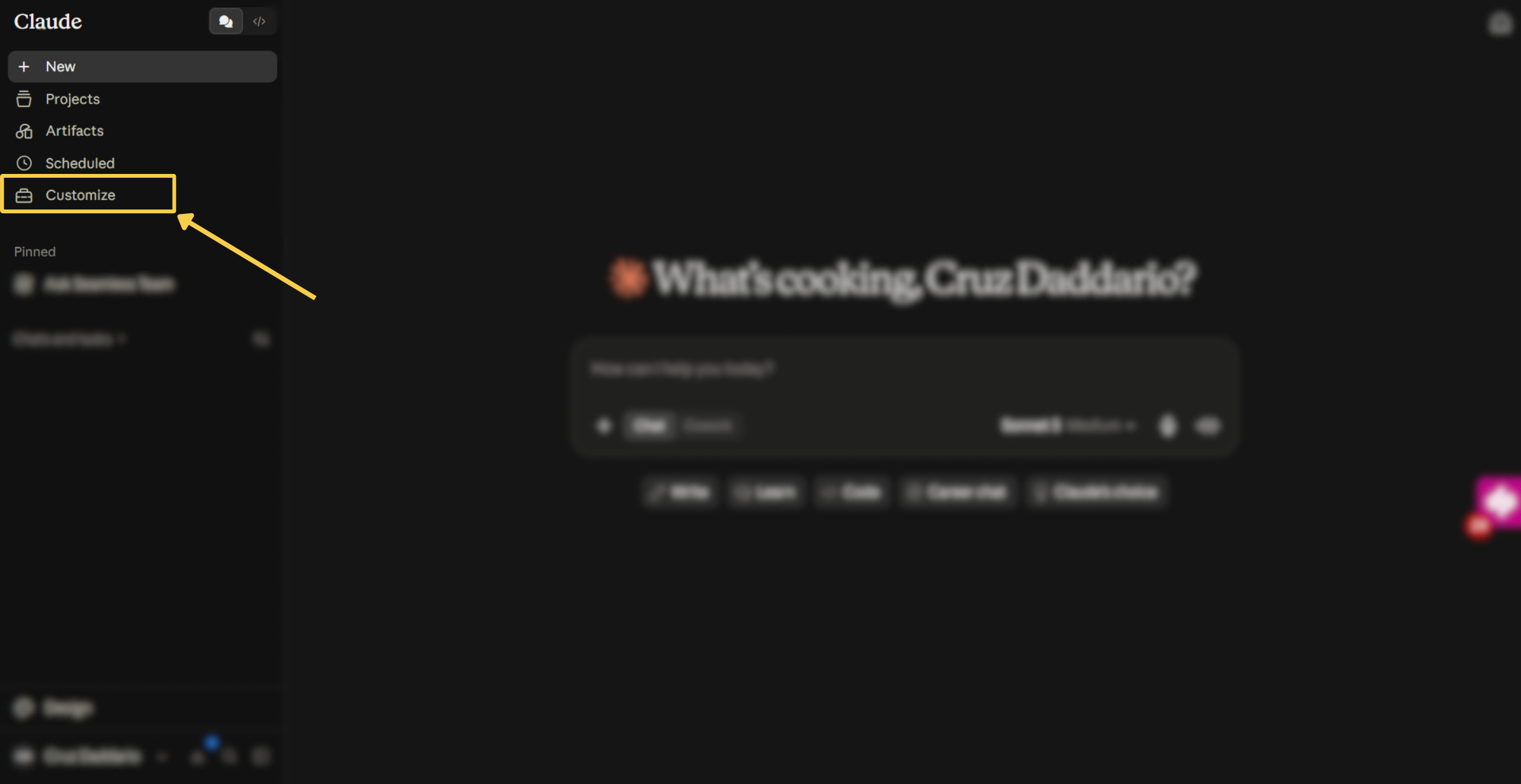
Log in to Claude and select Customize from the left-hand navigation.
From the Customize menu, select Connectors. Then click the + button and choose Browse Connectors to open Claude's Connector Directory.
Find the Seamless Connector
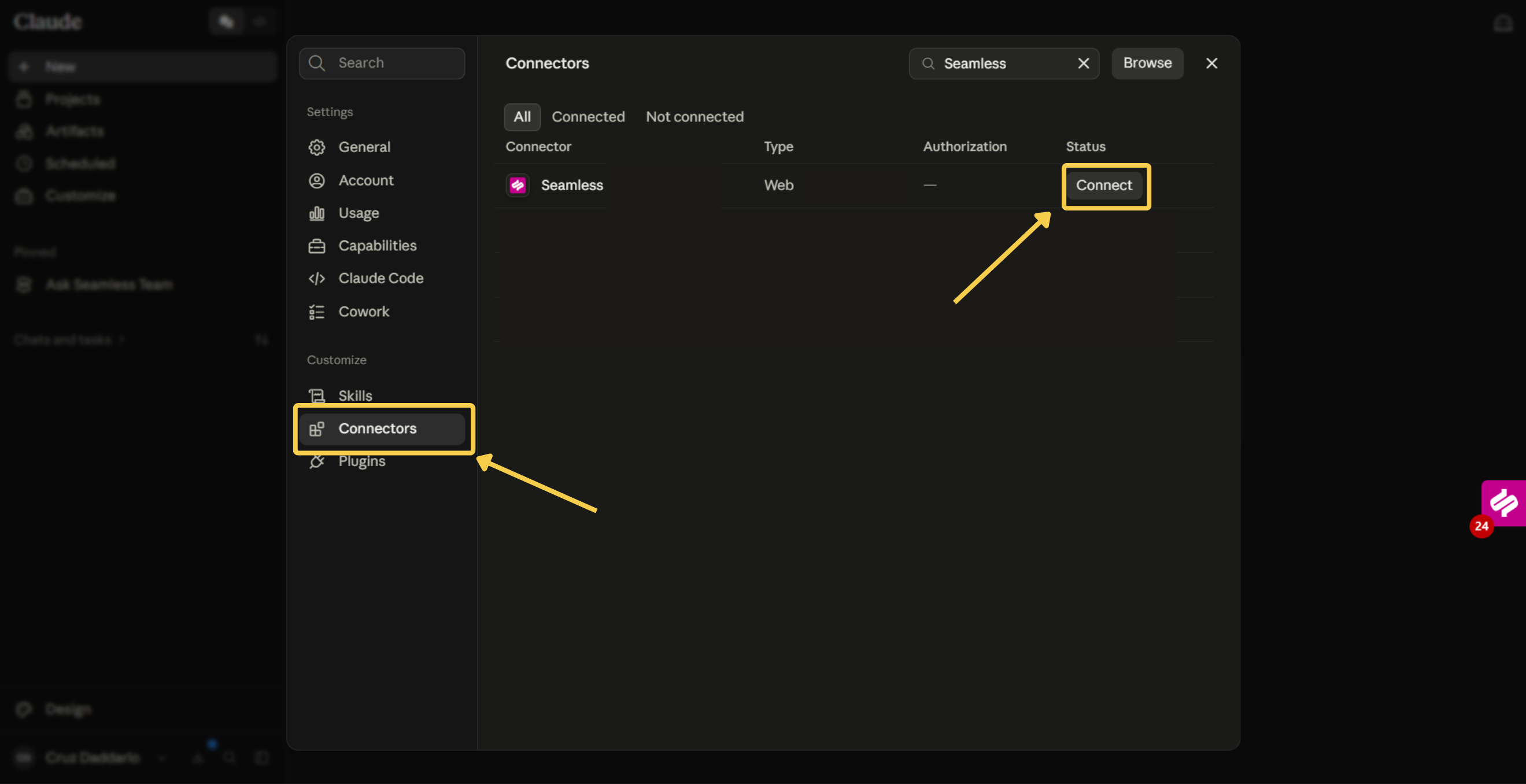
In the Connector Directory, search for Seamless.
Select the Seamless connector to view information about the integration, including the capabilities and permissions available through the connection.
Connect Your Seamless Account
Select Connect on the Seamless connector.
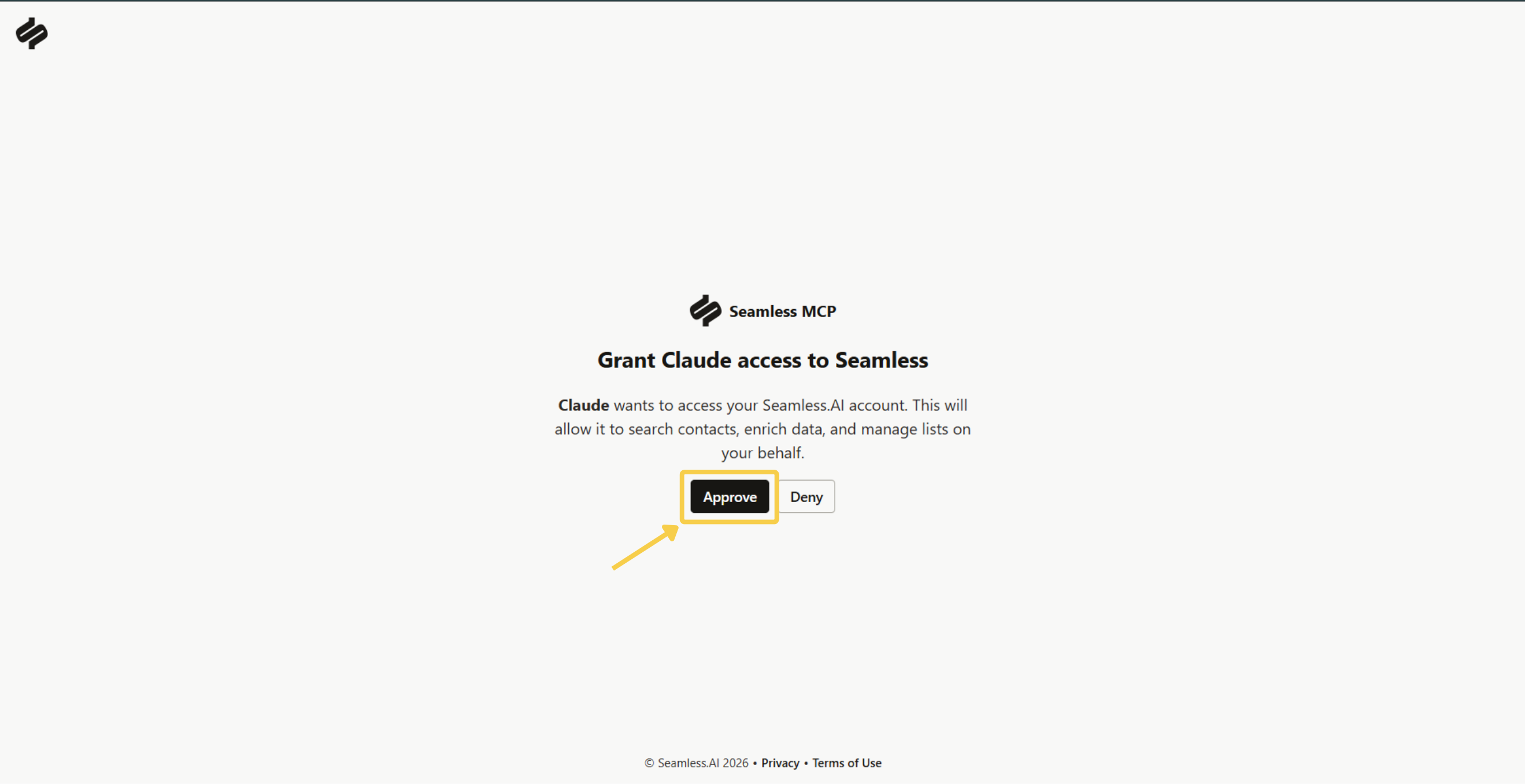
Claude will guide you through the authentication process. Sign in using the account associated with your Seamless access, review the requested permissions, and approve the connection.
Because Seamless is available as a direct connector in Claude, you do not need to manually enter a Seamless MCP server address or configure a custom connector.
Confirm Seamless Is Connected
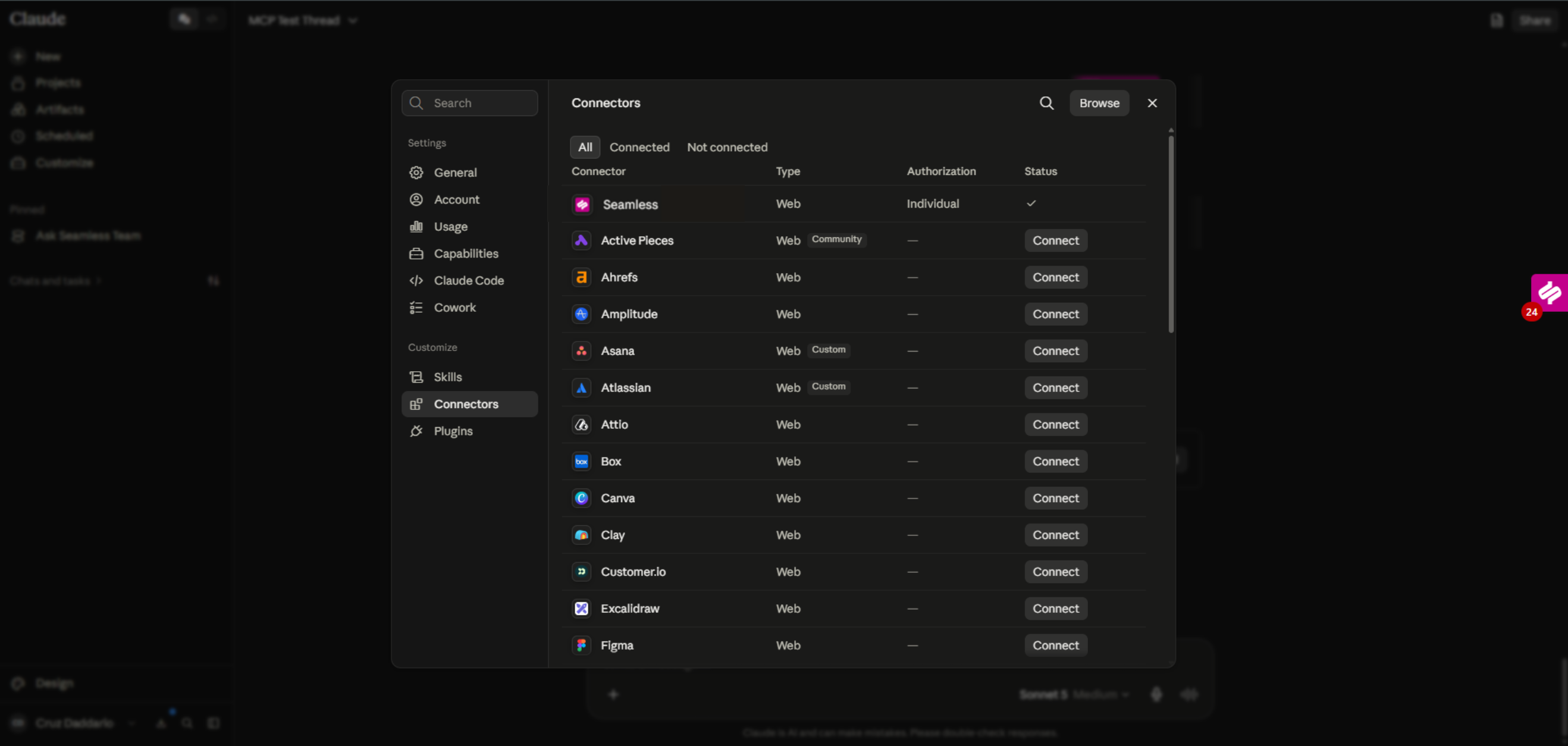
After authentication is complete, return to Customize > Connectors in Claude.
Seamless should now appear as connected and available for use with your Claude account.
Use Seamless in a Claude Conversation
Open a new or existing conversation in Claude.
Click the + button near the message box and select Connectors. Confirm that Seamless is enabled for the conversation.
Once enabled, you can ask Claude to perform supported Seamless actions directly within your conversation.
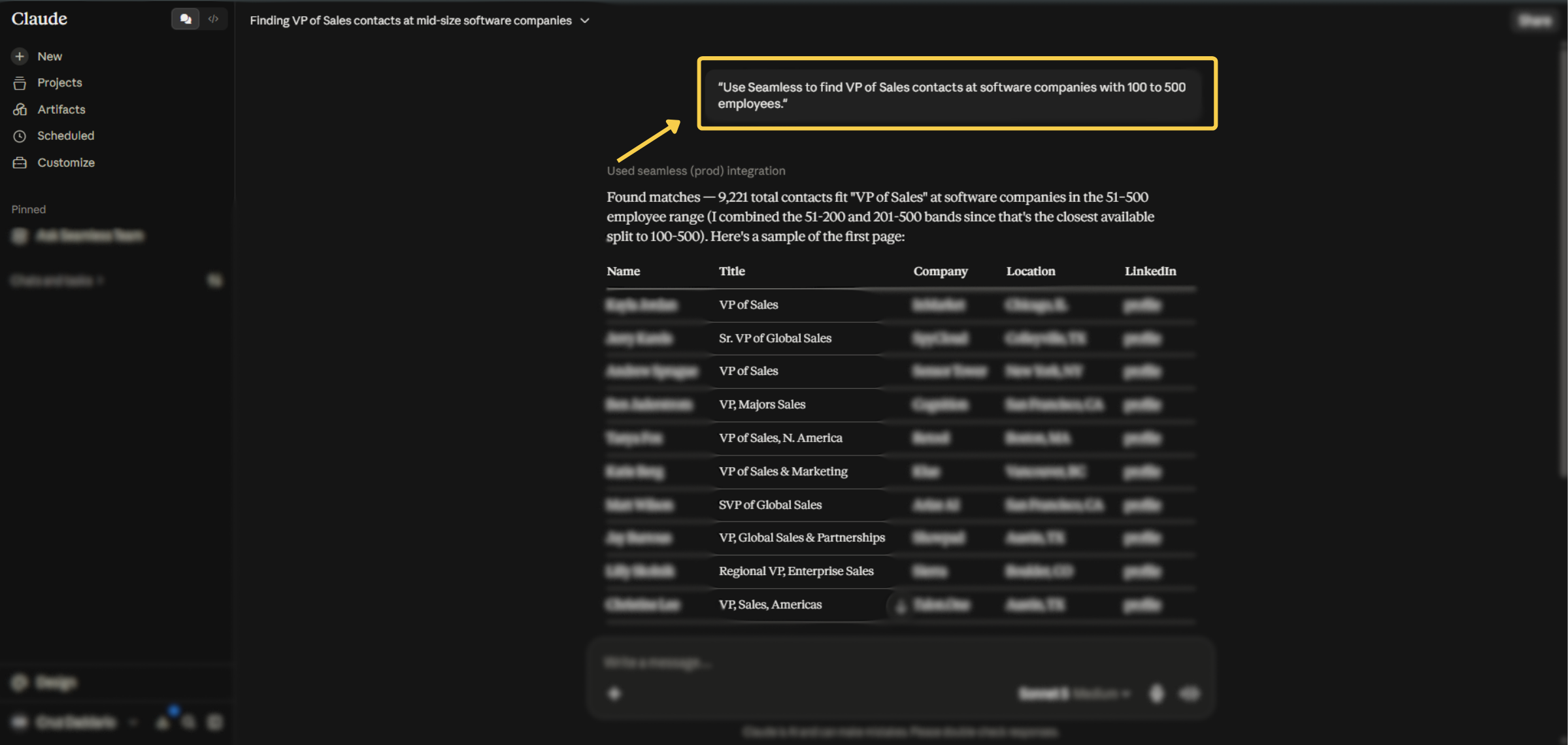
For example, you could ask Claude to:
"Use Seamless to find VP of Sales contacts at software companies with 100 to 500 employees."
Claude can then use the Seamless connector to help complete the request based on the tools and permissions available to your account.
How to Connect Seamless MCP to Claude
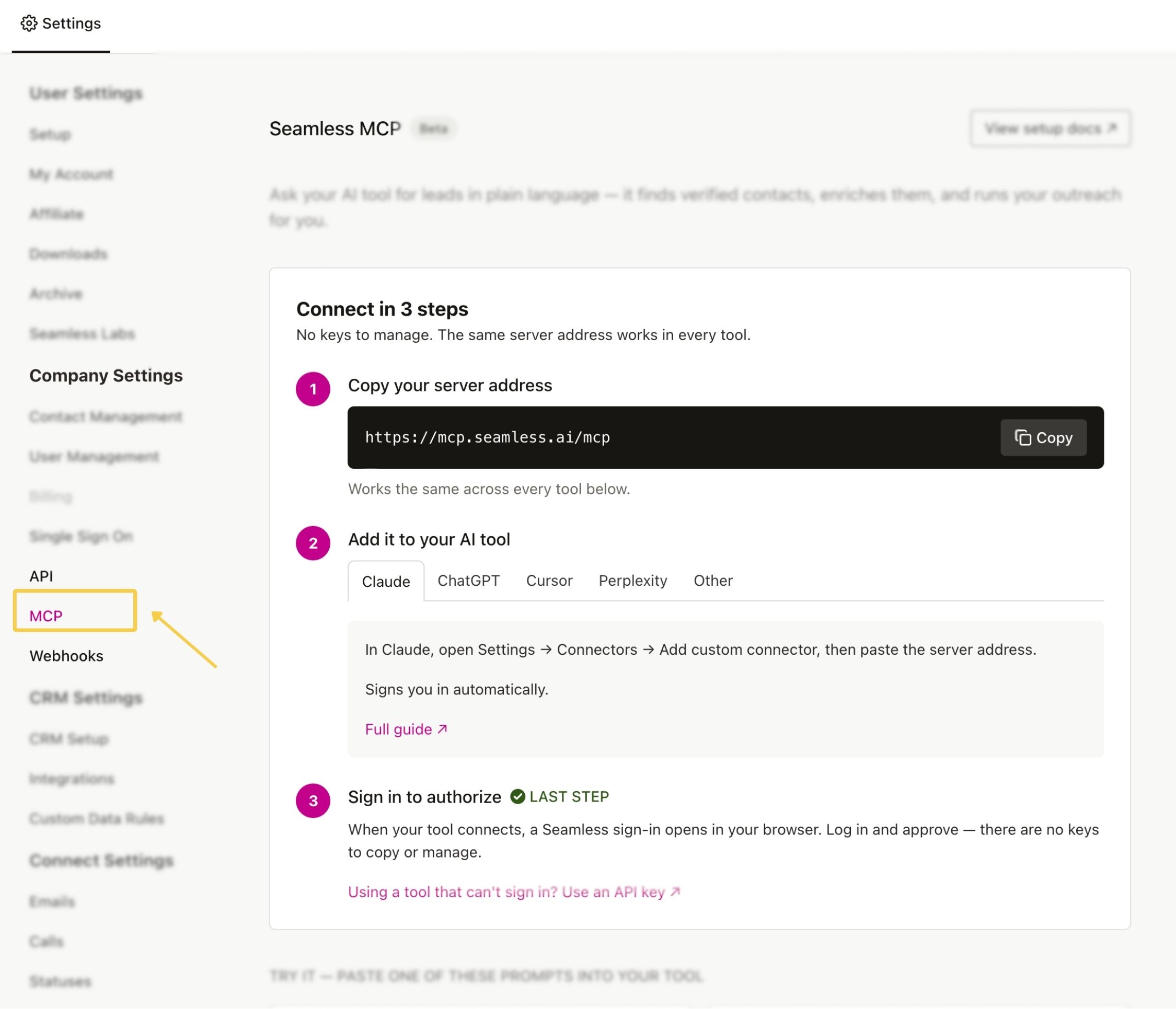
Step 1: Open the MCP Dashboard
Open Settings in Seamless and select MCP.
The MCP page will display the connection process, Seamless MCP server address, supported AI tools, sample prompts, and documentation.
Step 2: Copy the MCP Server Address
Copy the MCP server address: https://mcp.seamless.ai/mcp
It is recommended to always copy the current server address directly from the Seamless MCP page.
You will add this address to Claude as a connector.
Step 3: Select Claude as Your AI Tool
Select the Claude as the AI platform you want to connect.
Follow the instructions displayed for your selected platform. The exact setup process may vary depending on the AI tool.
In Claude, open Settings → Connectors → Add custom connector, then paste the server address.
Signs you in automatically.
Step 4: Sign In and Test the Connection
From Claude, sign in to the correct Seamless account and approve the connection. If direct authentication is supported, no API key is required.
Return to the MCP dashboard to confirm the connection, review permissions, and run a small test.
Learn more about connecting and monitoring your Seamless MCP Connections here: Seamless MCP Integration
Seamless Direct Connector vs. Custom Connector
The Seamless direct connector is available through Claude's Connector Directory. You simply find Seamless, select Connect, and authenticate your account.
A custom Seamless connector requires you to manually add the Seamless MCP server and complete the associated configuration.
If Seamless is available in your Claude Connector Directory, using the direct connector provides the simplest setup experience.
Best Practices for Using Claude with Seamless
Claude works best when users are clear about what they want to accomplish. A vague request may still return useful information, but a more specific request will usually produce faster and more accurate results.
Be Specific With Prompts
Try to explain:
- what you want Claude to do
- who or what it should work on
- any filters or requirements
- what kind of outcome you want
For example, instead of asking:
Find me some contacts
Try: Find me Directors of Sales at healthcare software companies in Texas and save the best matches to a new list called Texas Healthcare Sales Leaders
The second prompt is much easier for Claude to act on without requiring more back-and-forth.
Break Bigger Workflows Into Clear Steps
Claude can help with larger workflows, but it performs best when the goal is clearly defined. Good examples include:
- find contacts and save them to a list
- create a campaign for a specific segment
- draft outreach for a selected audience
- review campaign metrics and summarize what is underperforming
Confirm Destructive Actions
If Claude is using write/delete tools, be careful with actions like:
- deleting campaigns
- deleting steps
- deleting templates
- deleting lists
- deleting saved searches
For important workflows, it can help to ask Claude to show you what it plans to do first before making the change.
Use Read-Only Tools for Analysis
Claude can be especially helpful for reviewing and summarizing data before you take action. For example, you can ask it to:
- summarize campaign performance
- compare engagement across steps
- review saved contacts in a list
- check current credit balance
- explain what tasks are currently active
Let Claude Help You Draft Before You Send
Even when send tools are available, it may be helpful to start by asking Claude to:
- create a draft
- summarize what it plans to send
- generate a preview
- suggest improvements before launch
This gives users more control while still saving time.
Example Prompts to Use with Claude and Seamless
Here are a few examples users can try:
- Find me VP-level marketing contacts at B2B software companies in Chicago
- Create a list called Northeast Manufacturing Prospects and add saved contacts from that segment
- Show me which steps in my campaign have the lowest reply rate
- Draft a follow-up email for contacts who have not replied after step two
- Create a campaign for recently saved fintech contacts and add a first-step email draft
- Check my current credit balance and tell me what I have available
- Show me my saved contacts from the last 7 days
- Find companies in the healthcare space with more than 200 employees
- Create a preview email for one contact before I send this message more broadly
Troubleshooting Tips
If Claude is not able to complete an action:
- make sure Seamless is connected correctly
- confirm you are using the Seamless connector
- review whether the required tools are allowed
- check whether the tool is blocked or set to approval-only
- confirm your Seamless account has the necessary access and data available
If Claude can read information but cannot take action, the issue is often related to tool permissions.
Related Articles
Before getting started, you may also want to review:
- MCP Integrations Overview: Learn more about how Seamless can be used as an MCP connection across supported AI tools.
- Seamless API Overview: Learn more about API access, API connections, Persistent API Keys, authentication, credits, and rate limits.
Tool Permissions in Claude
When using Seamless in Claude, users may be asked to allow access to different tools. These tools fall into two main categories: read-only tools and write/delete tools.
Users can choose whether a tool is:
- Allowed
- Needs approval
- Blocked
While users have control over these permissions, it is highly recommended to allow all tool permissions for the best experience. Limiting permissions can prevent Claude from completing tasks fully, especially when a workflow requires both research and action. For example, Claude may be able to find a campaign but not update it, or draft an email but not send it, if certain tools are blocked.
If your team prefers more control, setting tools to Needs approval can be a good middle ground.
Read-Only Tools
These tools allow Claude to view information in Seamless without making changes.
Activity & Engagement
- Get_activity_feed
- View engagement history like opens, replies, bounces, calls, and other activity
- Get_campaign_metrics
- Review campaign performance metrics such as opens, replies, and step performance
Account & Credits
- Get_credits
- Check current credit balance and usage
- List_email_accounts
- View email accounts connected to Seamless
Contacts & Companies
- Get_my_contacts
- View contacts already saved or researched
- Get_my_companies
- View companies already saved or researched
- Search_contacts
- Search the Seamless database for contacts using filters like title, company, or location
- Search_companies
- Search the Seamless database for companies using filters like name, domain, industry, or revenue
Campaigns
- List_campaigns
- View campaigns or retrieve a specific campaign
- List_campaign_steps
- View the steps inside a campaign
- List_campaign_contacts
- View the contacts in a campaign, including their status and current step
Lists & Searches
- Get_lists
- View contact lists or retrieve a specific one
- List_saved_searches
- View saved searches or retrieve a specific one
Tasks
- List_tasks
- View tasks or retrieve a specific task
- Get_email_draft
- Retrieve a previously created draft email
- List_templates
- View saved email templates or retrieve a specific one
- List_email_footers
- View available email footers for campaigns
Call Logging
- List_call_dispositions
- View available call outcomes such as connected or voicemail
- List_call_sentiments
- View available call sentiment options such as positive or neutral
Research Polling
- Poll_contact_research
- Check the status or results of a contact enrichment job
- Poll_company_research
- Check the status or results of a company enrichment job
Write and Delete Tools
These tools allow Claude to take action inside Seamless.
Campaigns
- Create_campaign
- Create a new campaign
- Clone_campaign
- Duplicate an existing campaign with a new name
- Update_campaign
- Edit a campaign’s name, visibility, or linked email accounts
- Delete_campaign
- Permanently delete a campaign and all associated steps or tasks
- Execute_campaign_action
- Launch, pause, archive, or take other lifecycle actions on a campaign
- Create_campaign_step
- Add a new step to a campaign
- Update_campaign_step
- Edit an existing campaign step
- Delete_campaign_step
- Remove a step from a campaign
- Execute_campaign_step_action
- Pause, resume, or skip a specific step
- Add_contacts_to_campaign
- Add saved contacts to a campaign
- Remove_contacts_from_campaign
- Remove specific contacts from a campaign
- Create_email_draft
- Create a draft email for a contact
- Update_email_draft
- Edit an existing draft
- Send_email_draft
- Send a previously created draft
- Send_email
- Compose and send an email in one step
- Send_bulk_email
- Send emails to multiple contacts matching selected criteria
- Send_email_preview
- Send a preview of an email to a test address before launch
Templates
- Create_template
- Create a new email template
- Update_template
- Edit an existing template’s name, subject, or body
- Delete_template
- Permanently delete a template
Lists
- Create_list
- Create a new contact list
- Update_list
- Rename an existing list
- Delete_list
- Permanently delete a list
Saved Searches
- Create_saved_search
- Save a set of filters as a named search
- Update_saved_search
- Edit a saved search
- Delete_saved_search
- Permanently delete a saved search
Tasks
- Create_task
- Create a standalone task for a contact
- Update_task
- Edit an existing task
- Delete_task
- Permanently delete a task
- Execute_task_action
- Pause, start, cancel, reschedule, or take another action on a task
Research & Enrichment
- Research_contacts
- Enrich contacts to retrieve verified data like emails, phone numbers, and additional details
- Research_companies
- Enrich companies to retrieve data like revenue, size, and technology information
Call Logging
- Log_call
- Log a call outcome, sentiment, and notes for a contact
