
Archive
Archiving helps you manage saved contacts and companies without permanently deleting them. This article explains how to archive records individually or in bulk, where to access archived data, and what happens when a record is restored.
Archive Contacts and Companies
Archiving helps you manage your saved contacts and companies without permanently deleting them. Archived records are removed from your active views but can still be accessed later if needed.
How to Archive Contacts
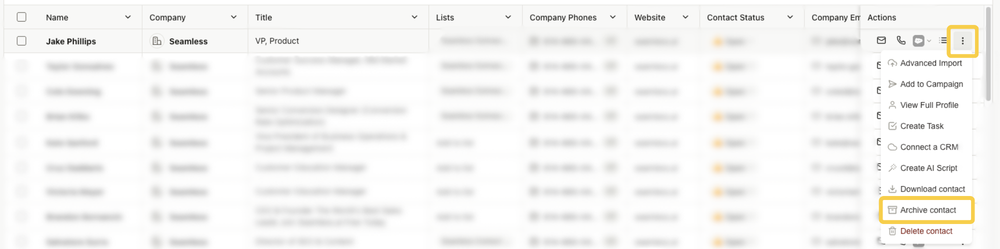
Archive an Individual Contact
- Go to My Contacts.
- In the Actions column, click the three-dot menu at the end.
- Select Archive Contact.
Archive Contacts in Bulk
Bulk archiving is helpful when you want to clean up larger groups of records more quickly. This is especially useful if you are managing older data, segmenting your database, or removing records from active views after a campaign or project is complete.
Archive a Filtered Group of Contacts
- Go to My Contacts.
- Use the Filters option to narrow your list to the group of contacts you want to archive.
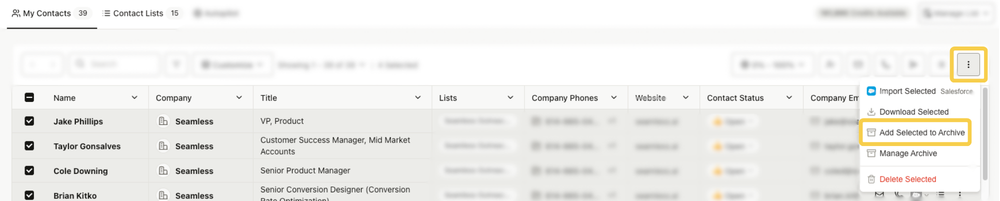
- Click the three-dot “More” menu in the top right corner.
- Select Add Filtered to Archive.

Archive Selected Contacts
- Go to My Contacts.
- Use the checkboxes on the left to select the contacts you want to archive.
- Click the three-dot “More” menu in the top right corner.
- Select Add Selected to Archive.
Archive All Contacts
If you want to clear out your entire active contact list at once, you can use the Archive All option. Because this affects all active contacts, the platform requires a confirmation step before the action is completed.
- Go to My Contacts.
- Click the three-dot More menu in the top right corner.
- Select Archive All.
- In the confirmation window, type confirmation into the text field.
- Click the red Archive All Contacts button.
How Archiving Works
Archiving in Seamless can happen in two ways: automatically through system-managed thresholds or manually through actions taken by the user. Understanding both options can help you better manage the size of your active records and keep your workspace running smoothly.
Automatic Archiving (Passive Management)
Each night, Seamless checks whether your account has reached the archive threshold of 50,000 contacts or 50,000 companies. These limits are separate and do not affect one another.
Once a threshold is reached, the system will automatically archive the oldest records first so your newer researched contacts and companies remain active.
Manual Archiving (Active Management)
Users can also archive contacts and companies manually from My Contacts and My Companies, either one at a time or in bulk.
This gives you more control over which records stay active while keeping older or less relevant records accessible for future use.
Why Use Archiving?
Archiving is designed to help users manage large sets of records more efficiently. As active contact and company counts grow, it can become more difficult to search, filter, and work through large datasets quickly.
Using archiving as part of your regular cleanup process can make it easier to focus on the records that matter most right now, while still preserving access to older records if you need them later.
Benefits include:
- Faster searching and filtering in My Contacts and My Companies
- Better organization of active records
- Reduced issues loading large result sets or filtered views
Where to Access Archived Contacts and Companies
Once records have been archived, they are still available to review and manage from the Archive area. This gives users a dedicated place to see what has been archived and take additional actions if needed.
You can access archived records in two ways:
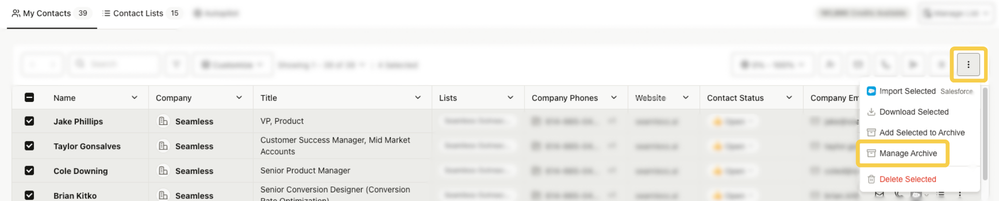
- Click the three-dot “More” menu in the top right corner on My Contacts, select Manage Archive
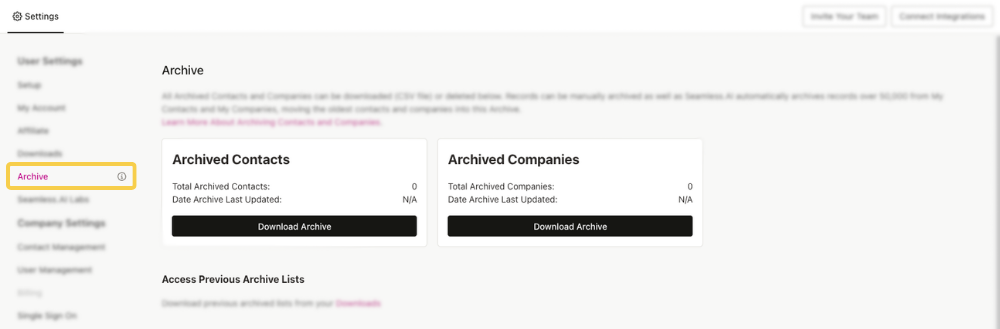
- Go to Settings and choose Archive
From the Archive page, you can:
- View the total number of archived contacts and companies
- See the most recent archive date
- Download archived contacts or companies as CSV files
- Delete all archived contacts or companies
What Happens to an Archived Record?
When a contact or company is archived, it is removed from your active records and most actions are restricted. This helps preserve the record while preventing it from continuing to appear in your main working views.
Archived records are not deleted, so the information remains available if you need to reference it again or restore it later.
You can still:
- View contact or company details
- Restore the record by unarchiving it
Archived records may also appear in Contact Search and Company Search with a gray Restore label.
If you restore a record:
- It becomes visible again in My Contacts or My Companies
- It keeps all past edits
- It keeps list assignments
- It keeps CRM import status
- It keeps saved dates
A new Restored Date will show when the record was moved back to active status. The backend Updated Date will also refresh to the unarchive date so the record is not immediately auto-archived again.
