
Customize CRM Import Mappings
Learn how to customize import mappings in Seamless so your contact and company data imports the way your team needs it to. This article covers how to access and edit mappings, add new field mappings, create custom mappings for static values, and use custom data rules to control formatting and overwrite behavior.
When importing contact or company data from Seamless into your connected CRM, the information that transfers is based on your import mappings. Seamless includes default mappings to help you get started, but you can also edit those mappings, add new ones, create custom mappings, and apply data rules to better match your team’s workflow.
This gives you more control over how data is imported, how required fields are populated, and how information is formatted before it reaches your CRM.
What Are Import Mappings?
Import mappings determine how data from Seamless fields is matched to fields in your connected CRM during import.
For example, a field in Seamless like Job Title, Phone Number, or Company Name can be mapped to the corresponding field in your CRM so the correct information is transferred during import.
Seamless supports several ways to customize this process:
- Standard import mappings for default field-to-field mapping
- Additional mappings for importing more data fields
- Custom mappings for sending static or custom values
- Custom Data Rules for overriding or formatting data before import
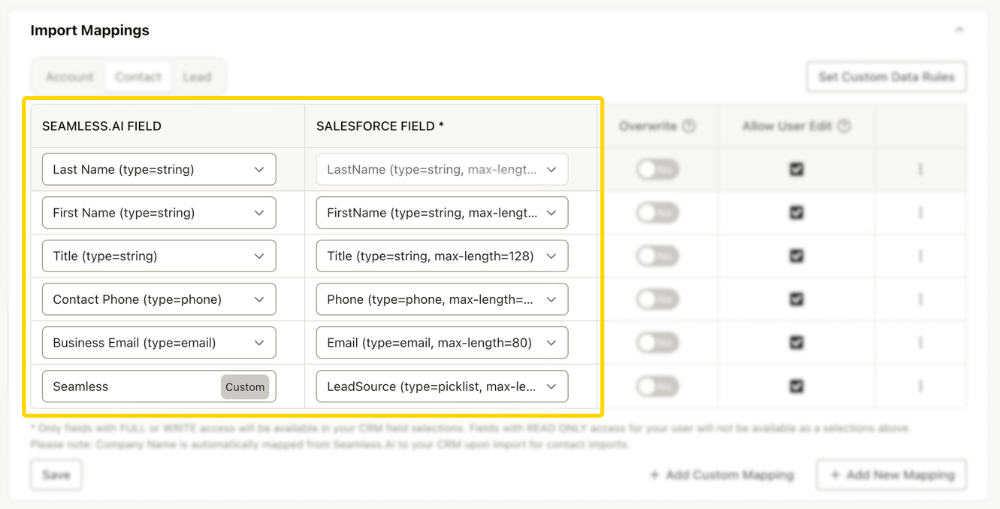
Access Import Mappings
You can access and manage your import mappings from your CRM setup settings.
- Click your initials in the bottom-left corner of Seamless.
- Open Settings.
- Navigate to your CRM Setup page.
- Review and update your import mappings and import preferences.
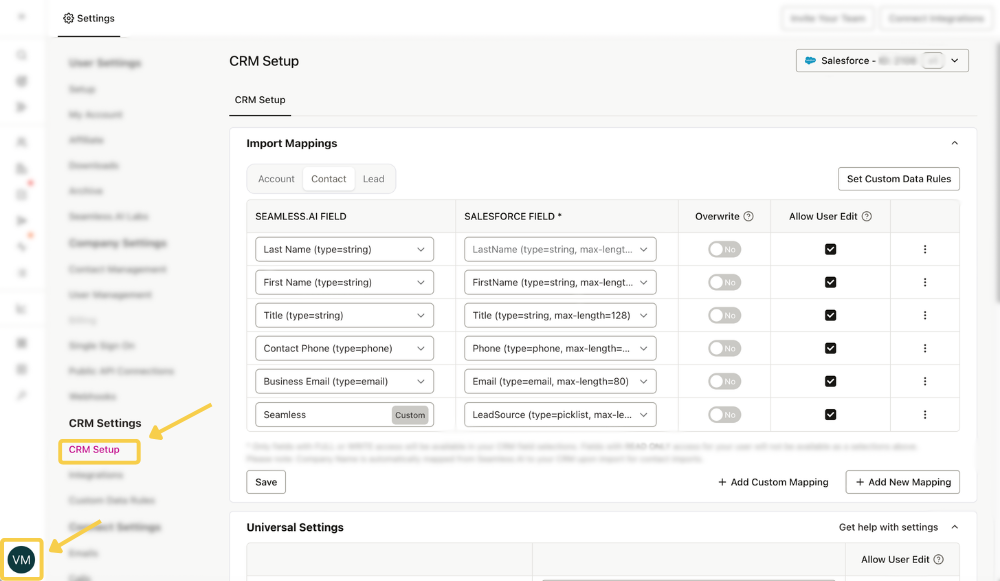
From the CRM Set Up page users can adjust your import mappings and universal settings according to your preference or your company's choice.
Customize fields for your entire organization or secure settings exclusively for your organization. Specify whether the data will override in your CRM for each mapping and preferences around users having ability to edit on their own import mappings/settings
Edit Existing Import Mappings
Seamless includes default field mappings, but you can update them based on your preferences or your organization’s requirements.
For each mapping, you can typically define:
- Seamless Field: The field containing data from Seamless
- CRM Field: The destination field in your connected CRM
- Override behavior: Whether imported data should overwrite existing CRM values
- Organization-wide settings*: Whether the mapping applies across the organization
- User edit permissions*: Whether individual users can modify the mapping
* Setting applied by Seamless account owners or admins for the rest of their Seamless org.
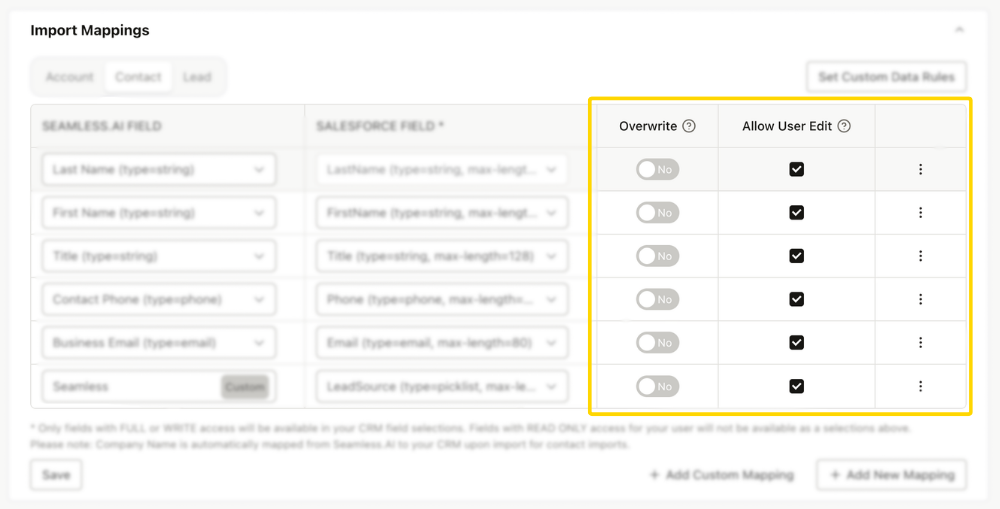
Allow User Edit
The Allow User Edit setting controls whether users can change a mapping on their own.
- When enabled, users can edit the setting for themselves. Admin or owner settings act as the default unless the user makes changes.
- When disabled, users can still view the setting, but it will be read-only.
If your team wants consistency across users, this setting can help standardize how imports are handled.
Important: After making changes to your mappings, be sure to click Save to apply your updates.
Add a New Mapping
Use Add New Mapping when you want to map an additional Seamless field to an available field in your CRM.
This is helpful when you want to import more data than what is included in the default mapping setup.
Common examples include:
- Additional phone number fields
- Additional email address fields
- Extra contact or company details
- Custom CRM fields that are available for mapping

To add a new mapping:
- Go to your CRM Setup page.
- Locate the CRM import mappings section.
- Click Add New Mapping.
- Select the Seamless field you want to import.
- Select the CRM field where the data should be sent.
- Choose your overwrite and permission settings, if applicable.
- Click Save.
Note: The connected user must have permission to write to the selected CRM fields for imports to complete successfully.
Create a Custom Mapping
Use Custom Mappings when you need to send a value into your CRM that does not come from a default Seamless field.
This is especially useful when:
- Your CRM has a required field that does not have a matching Seamless field
- You want every imported record to include the same static value
- You want to populate a custom CRM field consistently
How custom mappings work
A custom mapping allows you to create a field in Seamless, assign a static or predefined value to it, and then map that field into your CRM.
Example use cases
- Setting a default status for imported records
- Populating a required source field
- Sending a standard value for routing, segmentation, or reporting

To create a custom mapping:
- Go to your CRM Setup page.
- Locate the CRM import mappings section.
- Click + Add Custom Mapping.
- Enter the value Seamless should send during import.
- Select the corresponding CRM field where the Seamless entry will be mapped to.
- Choose your overwrite and permission settings, if applicable.
- Click Save.
This gives you a reliable way to fill CRM fields even when the value is not part of the standard Seamless profile data.
Custom Data Rules
In addition to field mappings, Seamless also offers Custom Data Rules to help you control how data is formatted or overridden before it is imported.
Custom Data Rules are useful when the default Seamless value does not match the format, label, or naming convention your CRM expects. This includes Data Mappings, which replace one Seamless field value with another, and Formatting Rules, which standardize how values like phone numbers appear in Seamless and export to connected systems. Owners and admins can also apply mappings across the team or upload them in bulk for consistency.
For full setup steps and examples, see the Custom Data Rules in Seamless article.
Import Mapping Best Practices
- Use standard mappings for everyday field-to-field imports.
- Use Add New Mapping when you want to bring over more Seamless data.
- Use Custom Mappings when you need to send a static value or populate a required field.
- Use Custom Data Rules when values need to be corrected, translated, or reformatted before import.
- If you manage a team, consider applying settings organization-wide to maintain consistency.
