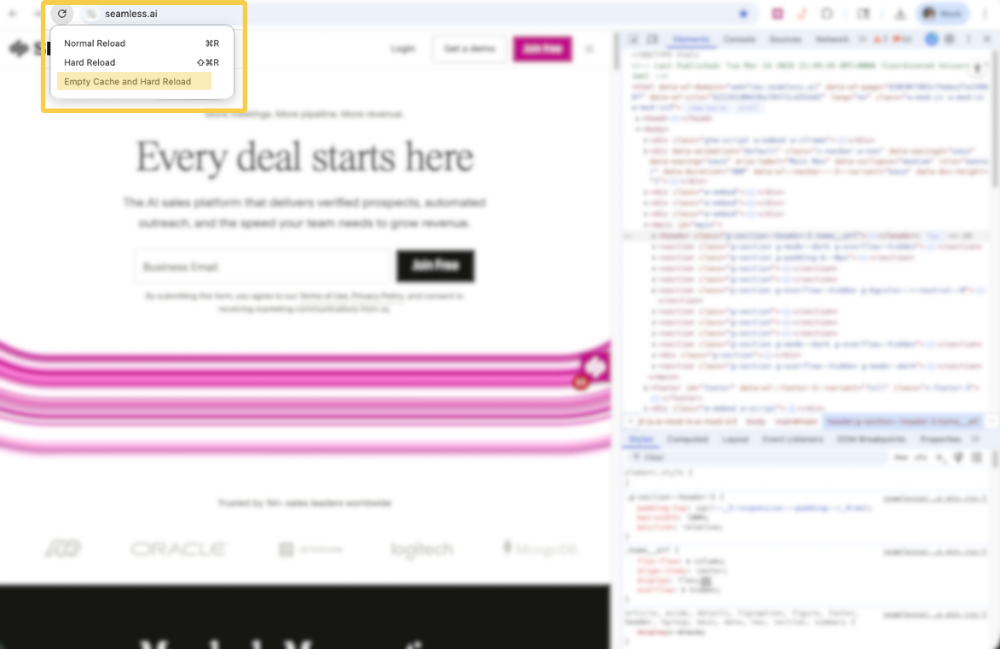
Clearing your Browser Cache
This article explains when and why to clear your browser cache in Chrome to resolve formatting, loading, and Chrome Extension issues in Seamless. It also provides step-by-step instructions for using Empty Cache and Hard Reload to refresh the most up-to-date version of the page.
Clearing your browser cache can help resolve formatting and loading issues in both the Seamless app and the Chrome Extension. This is a common troubleshooting step for many web-based applications.
When to Clear Your Cache
You may want to clear your cache if you notice:
- Pages not loading correctly
- Formatting issues in the app
- Buttons or features not responding as expected
- Outdated information still appearing
- Problems using the Chrome Extension
How to Empty Cache and Hard Reload in Chrome
- Open Seamless in Google Chrome.
- Right-click anywhere on the page and select Inspect.
- The Developer Tools panel will open on the right side of the screen.
- Click and hold the refresh icon in the top-left area of the browser.
- From the menu that appears, select Empty Cache and Hard Reload.
This forces Chrome to load the most up-to-date version of the page and can often resolve display or loading issues right away.
Additional Note: Clearing your cache will not remove your data from Seamless, but it may refresh stored browser content and sign you out of active sessions in some cases.