
AI Prompts and AI Campaigns
This article explains how AI Prompts in Connect help users create personalized outreach faster. It covers where to find AI Prompts, how to create and save them in Content, how to apply them in Campaigns, how they work in live outreach steps, and best practices for writing effective prompts.
How to Use AI Prompts in Connect
AI Prompts in Connect help users generate personalized outreach at scale. Instead of writing every message from scratch, users can create prompts that guide AI to build outreach copy for each contact based on the instructions they provide.
This feature is available in both Content and Campaigns, making it easy to create reusable prompts and apply them directly to outreach steps.
What AI Prompts Do
AI Prompts allow users to tell Seamless what kind of messaging they want created for their outreach. Once a prompt is saved and applied, AI can generate custom messaging for each contact as they move through a campaign step.
This helps users:
- Create more personalized outreach faster
- Save time on manual writing
- Reuse proven messaging frameworks across campaigns
- Scale outreach without sacrificing relevance
Where to Find AI Prompts
Users can access AI Prompts in two places within Connect:
- Content when creating templates
- Campaigns when adding a new step
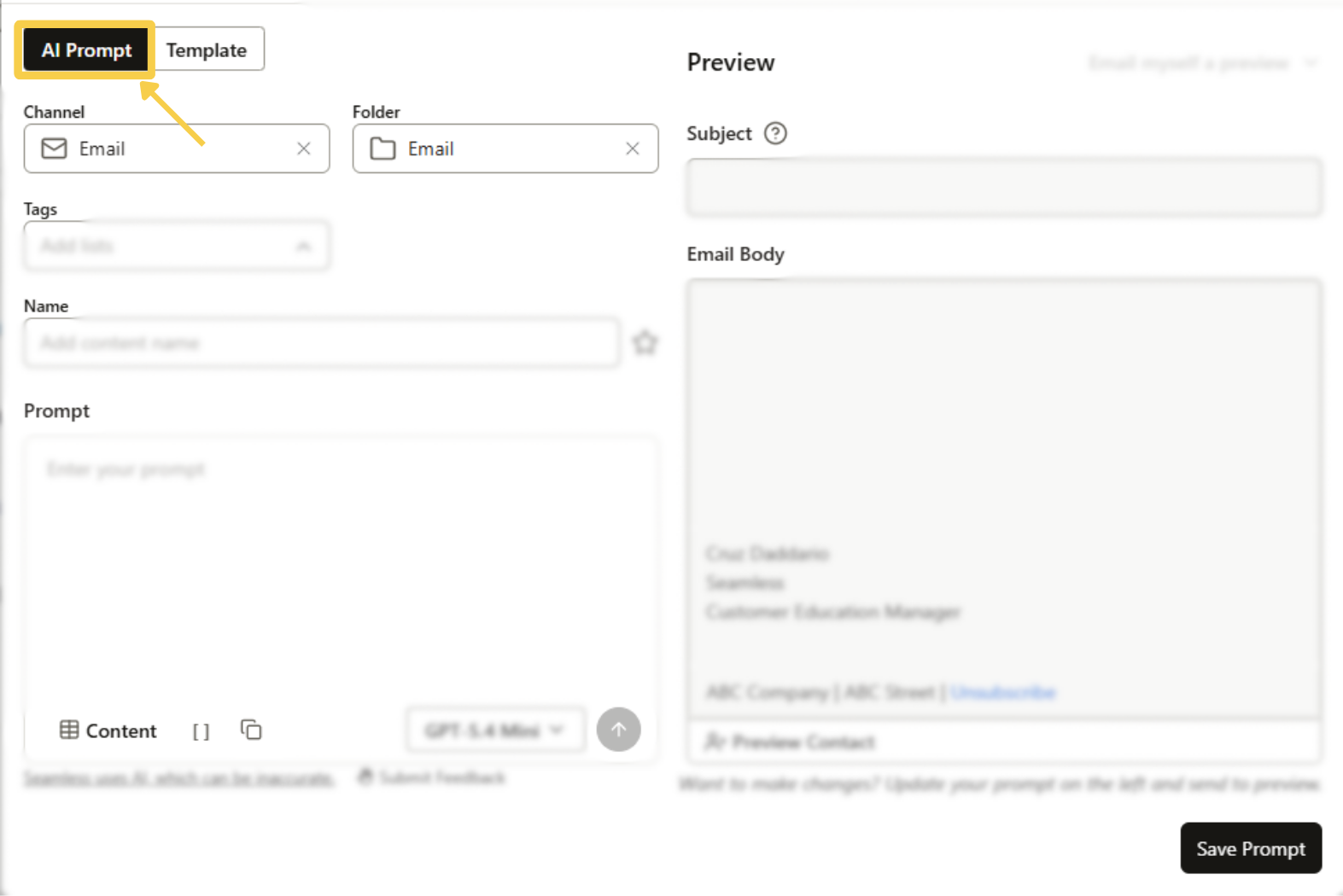
In both areas, users will see an AI Prompts tab at the top of the template or step creation window.
How to Create an AI Prompt in Content
If a user is working in the Content section, they can create and save prompts for future use.
To create an AI Prompt in Content:
- Go to Content
- Start creating a new template
- Click the AI Prompts tab
- Enter a name for the prompt
- Write the prompt you want AI to use for generating outreach content
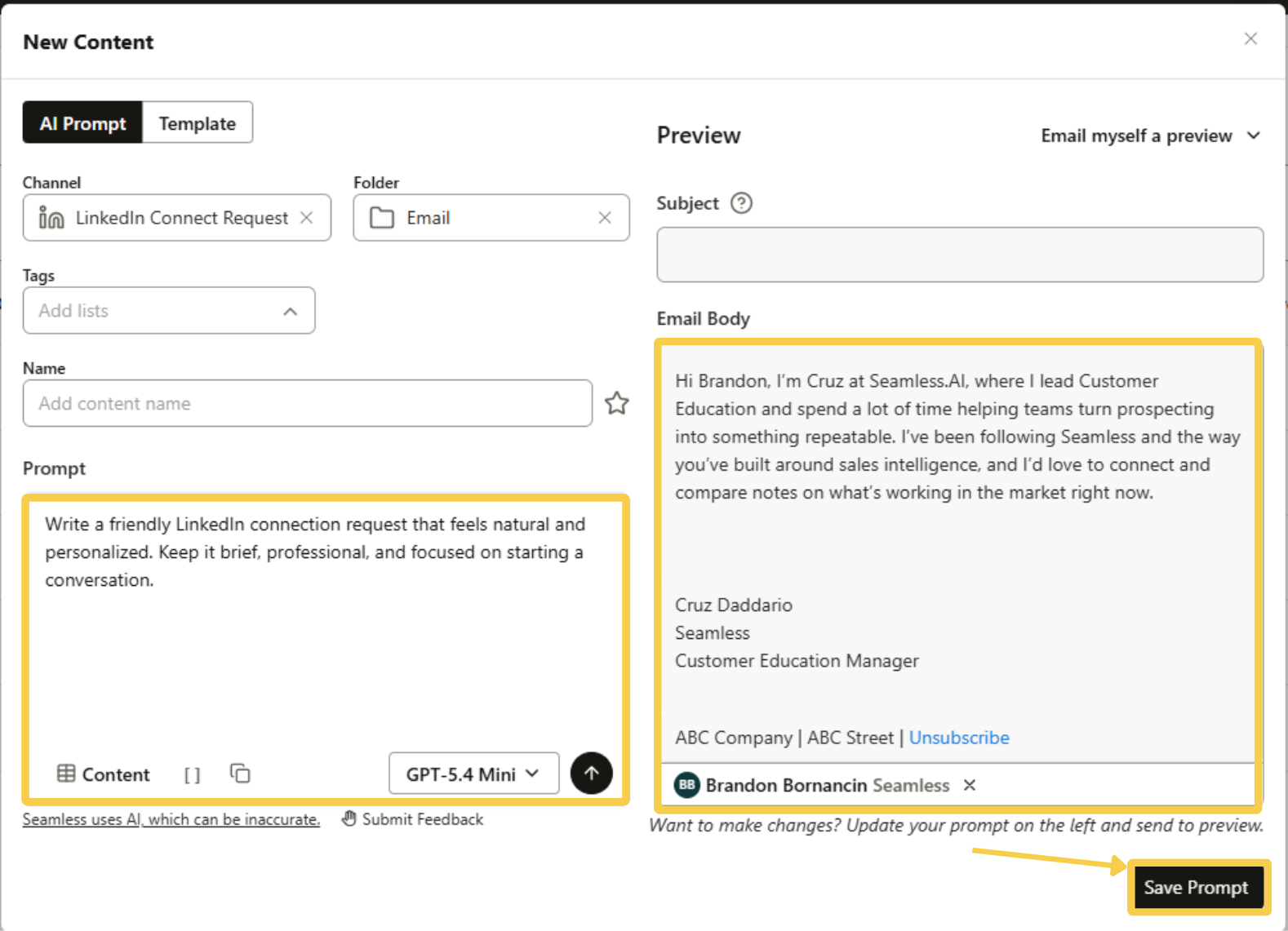
From there, users can preview how the prompt performs. In the Content section, they can view the prompt and email themselves a preview if they want to see what the AI created. If needed, they can continue refining the prompt until the messaging looks the way they want.
Once ready, click Save Prompt to store it for future use in campaign steps.
How to Use AI Prompts in Campaigns
Users can also apply AI Prompts directly inside Campaigns when adding a new step, such as:
- LinkedIn Connection
- Call
- Automated Email
- Other outreach step types
To use an AI Prompt in Campaigns:
- Open a campaign and add a new step
- In the step setup window, click the AI Prompts tab
- Create a new prompt or load a previously saved prompt. If you want to save a new prompt for future use, click the floppy disk icon to save it so it can be loaded again later.
- Optionally load in a contact to preview what the generated messaging will look like
- Once ready, click Add Step
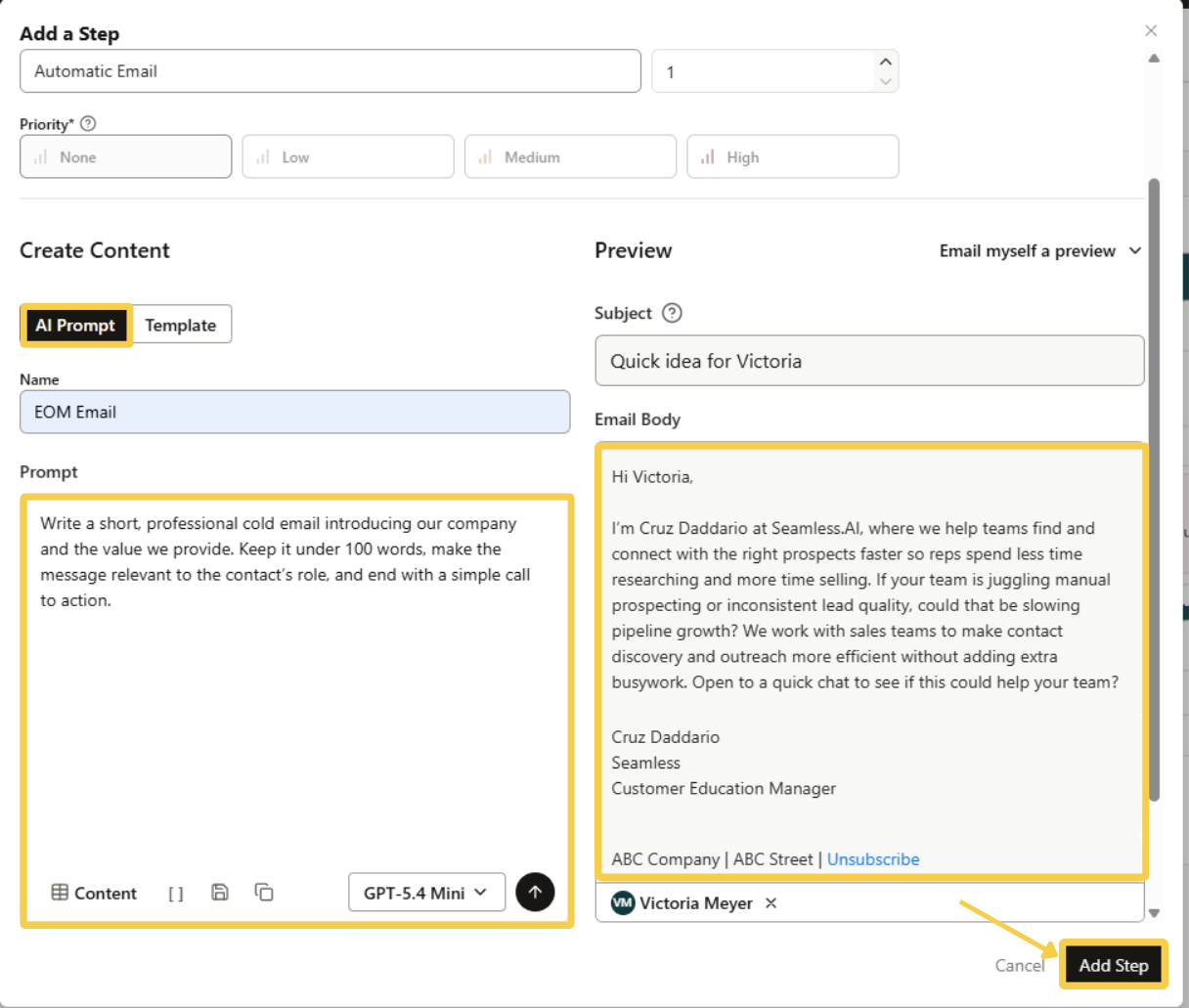
This adds the step to the campaign along with the selected AI Prompt.
How To Use AI Prompts In Individual Emails
AI Prompts can also be used when composing individual emails. To generate a message using an AI Prompt:
- Open the individual email you want to compose
- Click Content
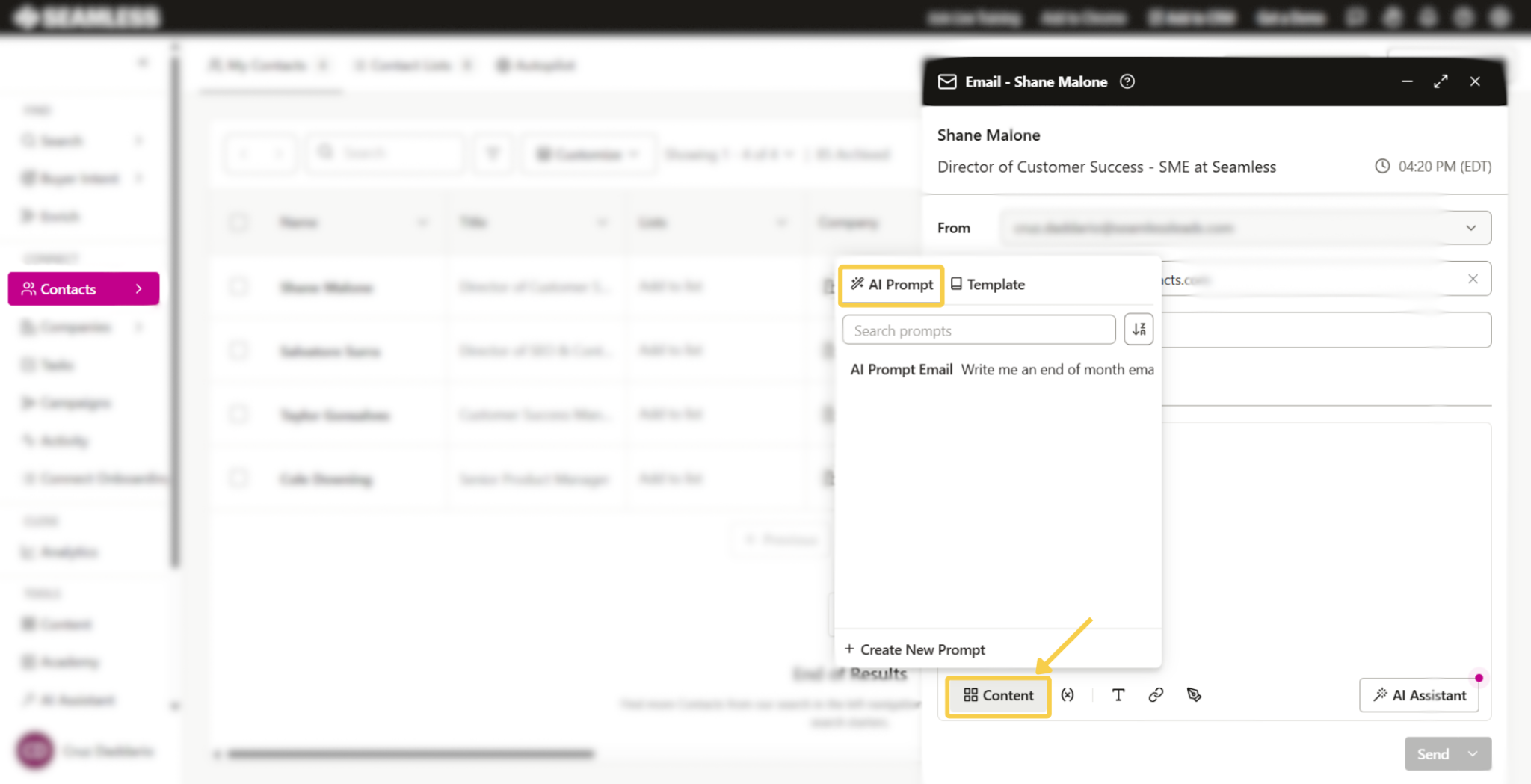
- Select the AI Prompt you want to use
- Seamless will automatically generate a preview of the email based on your prompt
- Review the generated message, make any edits you want, and send when you're ready
This gives you the speed of AI-generated copy with the confidence of reviewing every message before it goes out without having to write anything from scratch.
How AI Prompts Work in Live Campaigns
Once a campaign is active and a contact reaches a step powered by an AI Prompt, the AI will generate messaging for that contact based on the instructions tied to that step.
How the message is handled depends on the step type:
- For automated steps, the AI-generated message is sent automatically
- For manual steps, the user can review the generated message, make edits if needed, and then either send it or copy the text for use in another channel
This gives users flexibility to automate where it makes sense while still keeping control over more hands-on outreach steps.
Why Use AI Prompts
AI Prompts are especially useful for teams that want to scale personalization without spending hours manually writing outreach.
With AI Prompts, users can:
- Create messaging once and apply it across many contacts
- Personalize outreach using a repeatable structure
- Test and refine messaging more efficiently
- Support both automated and manual outreach workflows
Best Practices for Writing AI Prompts
To get the best results, prompts should be clear and specific. The more direction you give the AI, the better the output will match your goals.
A strong prompt should usually include:
- The type of message you want written
- The tone you want to use
- The goal of the message
- Any important talking points to include
- Any instructions on length or style
For example, instead of writing:
"Write a sales email"
Try something more specific like:
"Write a short, professional cold email to a VP of Sales introducing our platform. Keep it under 100 words, mention improving prospecting efficiency, and end with a simple call to action for a quick meeting."
Example AI Prompts
Here are a few example prompts users may want to try:
Cold Email Prompt; Write a short, professional cold email introducing our company and the value we provide. Keep it under 100 words, make the message relevant to the contact’s role, and end with a simple call to action.
LinkedIn Connection Prompt: Write a friendly LinkedIn connection request that feels natural and personalized. Keep it brief, professional, and focused on starting a conversation.
Follow-Up Email Prompt: Write a polite follow-up email for someone who has not replied yet. Reinforce the value of our solution, keep the tone confident and professional, and ask if they would be open to learning more.
Value-Based Outreach Prompt: Write a personalized outreach message that explains how our product or service can help solve a common business challenge. Keep the message concise, relevant to the contact’s role, and focused on value.
Manual Step Prompt: Write a personalized message for a manual campaign step that a user can review before sending. Make it conversational, relevant to the contact’s role, and focused on starting a discussion.
Short Intro Prompt: Write a short introduction message that explains who we are, what we do, and why it may be relevant to this contact. Keep the tone professional and approachable.
Re-Engagement Prompt: Write a re-engagement message for a contact who has not responded or has gone cold. Keep it short, respectful, and focused on restarting the conversation.
Role-Based Prompt: Write an outreach message tailored to this contact’s role and likely priorities. Keep it personalized, concise, and focused on how our offering may be relevant to their work.
