
CRM Activity Syncing
Set up CRM Activity Syncing in Seamless to automatically or manually sync supported activities to HubSpot or Salesforce, manage field mappings, and review sync status.
CRM Activity Syncing allows Seamless to automatically sync activity data to your connected CRM so your engagement history stays current and consistent across platforms.
Activity Syncing is currently available for HubSpot and Salesforce. Users can manually sync supported activities from the Activity page, and admins can also enable auto-import to automatically sync supported activities in the background.
How Activity Syncing Works
Activity Syncing supports both manual syncing and automatic syncing.
Manual activity syncing is available from the Activity page. Users can choose which supported activities they want to sync to their connected CRM.
Admins can also enable auto-import from the Activity Syncing tab in CRM Setup. When auto-import is enabled, supported activities are automatically sent to the connected CRM in the background without users needing to manually sync each activity.
How to Enable Activity Syncing
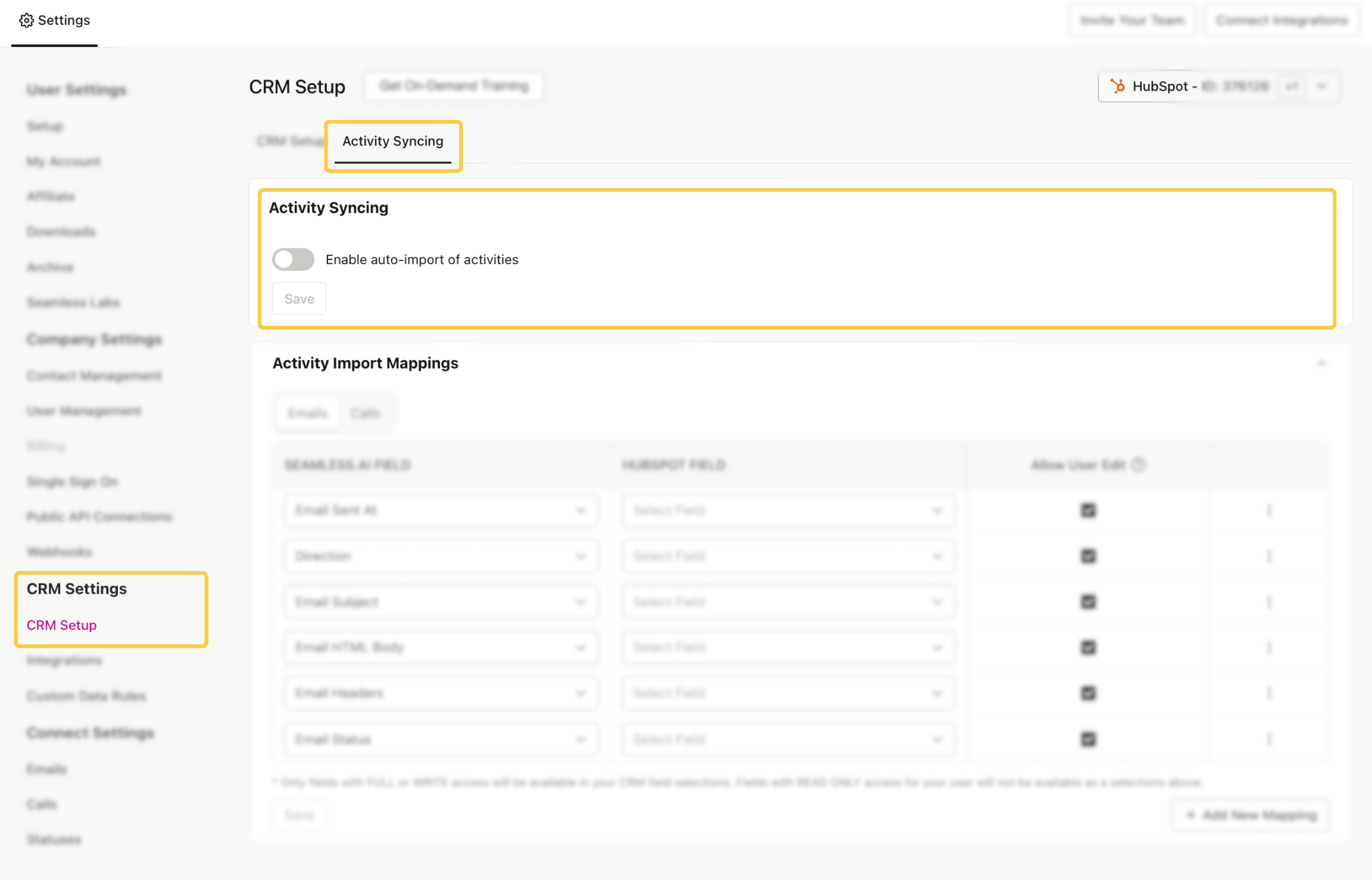
To turn on Activity Syncing:
- Go to Settings
- Open CRM Setup
- Select the Activity Syncing tab
- Toggle on Enable auto-import of activities
- Click Save
Once saved, activity syncing will begin automatically.
Activity Import Mapping
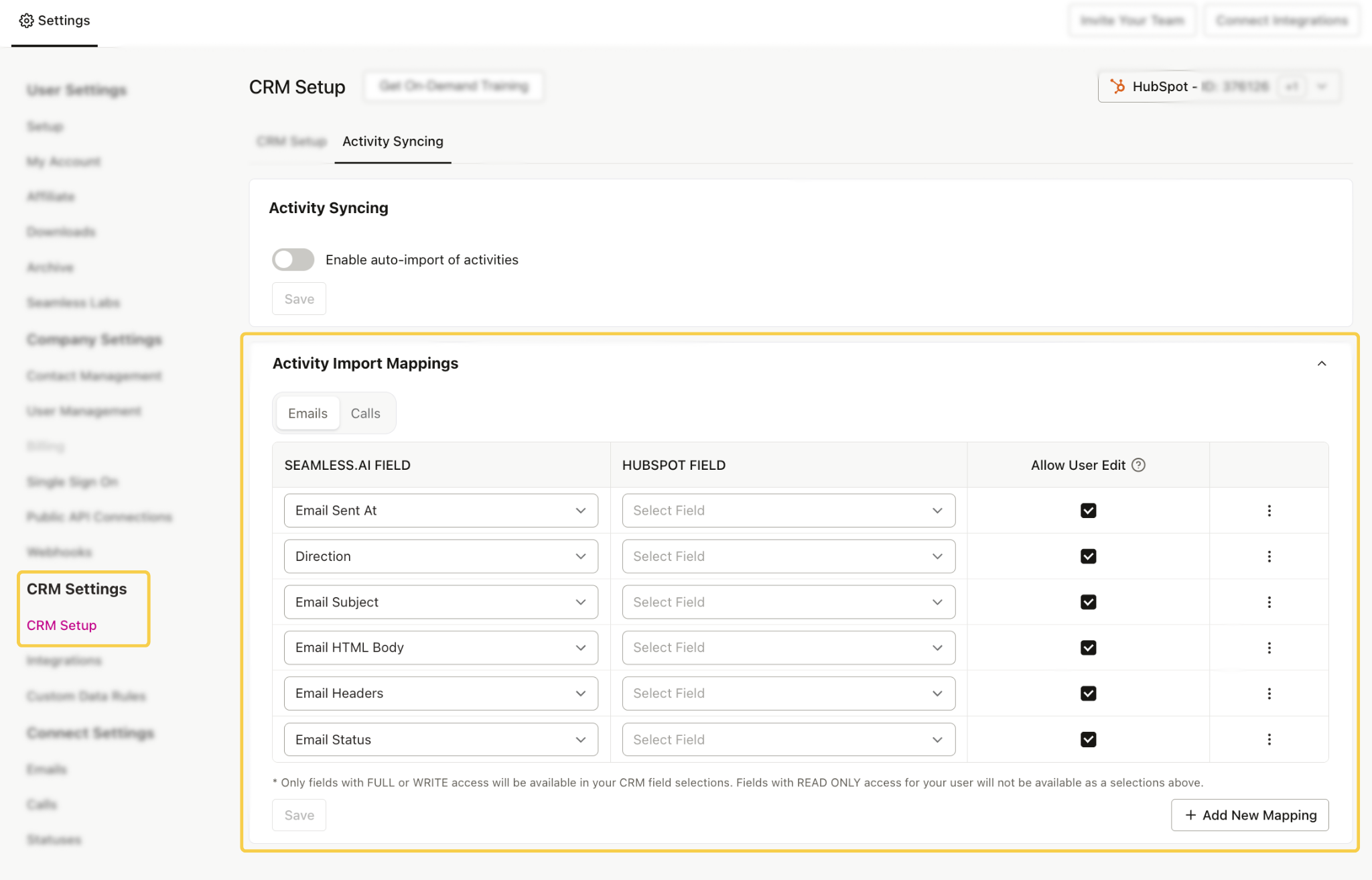
Before syncing activities, it is important to review how your Seamless fields map to your CRM fields. This helps make sure activity data is sent to the correct place in your CRM and keeps your records accurate.
To review these settings:
- Go to Settings
- Open CRM Setup
- Select the Activity Syncing tab
- Scroll down to Activity Import Mappings
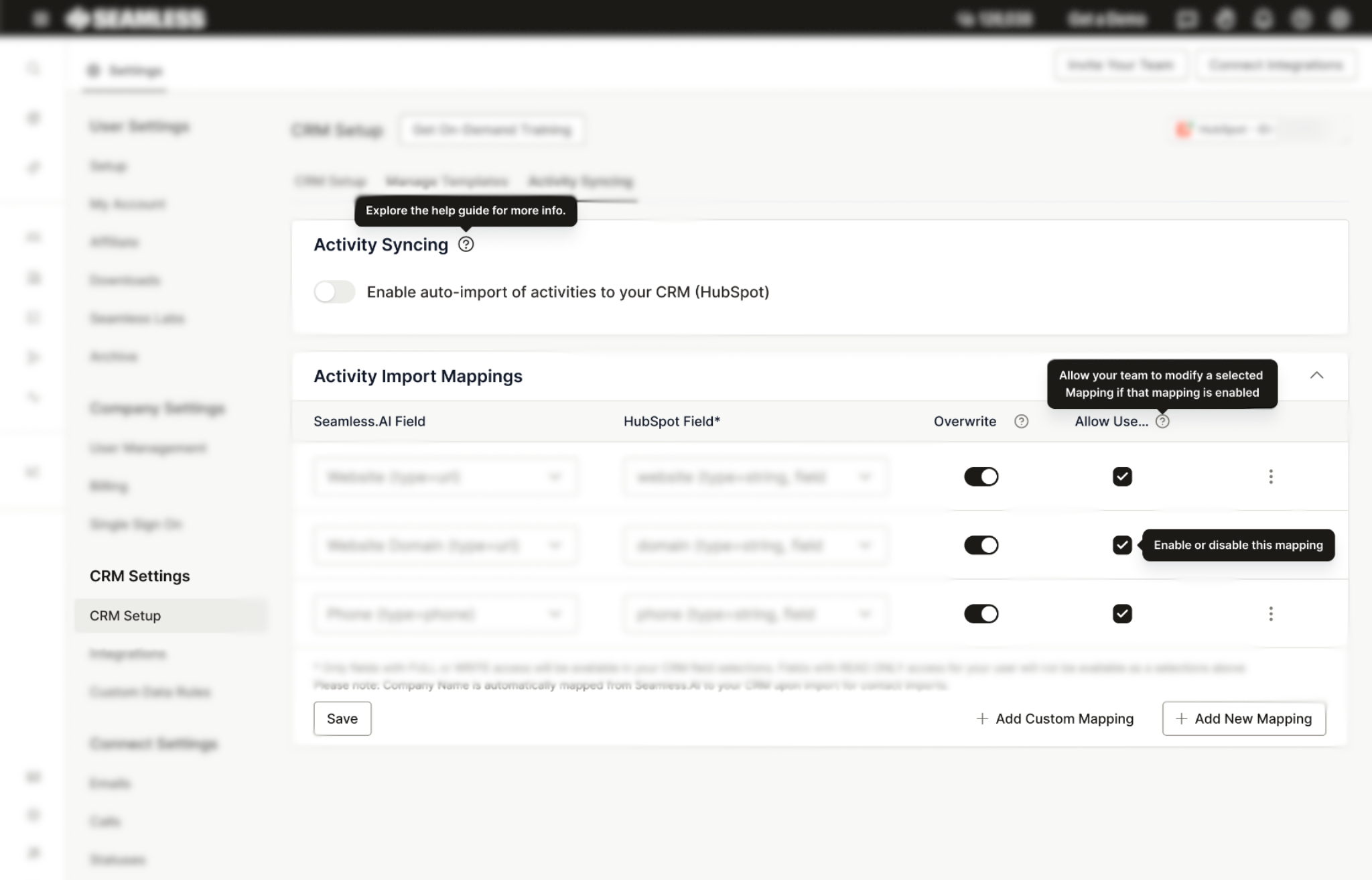
Each row in this section represents a field mapping between Seamless and your connected CRM.
For example, you may see mappings such as:
- Website in Seamless mapped to Website in your CRM
- Website Domain mapped to the Domain field
- Phone mapped to Phone field in your CRM
Field mapping options may vary depending on your connected CRM and the fields available in that CRM.
It is also important to note that only Hubspot fields with the proper write permissions will be available for mapping.
Each mapping also includes the option to Add a Custom Mapping. This allows you to create additional mappings for custom CRM fields when needed.
Activity Page Enhancements
Once Activity Syncing is enabled, new columns will appear on the Activity page so users can quickly see whether an activity was sent to the connected CRM and what its current sync status is.
These added columns may include:
- CRM Activity Synced: Shows the current sync status for the activity
- CRM Activity Synced Date: Shows the date and time of the last successful sync
- CRM Indicator: Displays the connected CRM, such as the HubSpot or Salesforce icon
From the Activity page, users may be able to sync Connect activity to their CRM individually through the icon in the CRM column.
For Salesforce, users may also see a bulk import option in the top-right corner of the Activity page.
If other CRM or sales engagement tools are connected, you may see additional sync-related columns as well, such as:
- Salesloft Activity Synced
- Salesloft Activity Synced Date
These columns give users better visibility into what has synced successfully and what may still need attention.
Understanding Sync Statuses
The CRM Activity Synced column will display one of the following statuses:
- Synced: The activity was successfully sent to the connected CRM
- Syncing…: The sync is currently in progress
- Sync Failed: The sync attempt was unsuccessful and may need to be reviewed
Reviewing these statuses can help users quickly understand whether activity data is flowing properly into their CRM or if troubleshooting may be needed.
HubSpot Activity Syncing
HubSpot Activity Syncing allows Seamless to automatically sync activity data to HubSpot so your engagement history stays current and consistent across platforms.
Once enabled, HubSpot syncing happens automatically in the background and includes all supported activity types.
HubSpot Field Mapping
For HubSpot, Activity Import Mappings allow you to confirm how Seamless fields map to HubSpot fields.
For example, you may map:
- Website in Seamless to the Website field in HubSpot
- Website Domain to the Domain field
- Phone to the Phone field in HubSpot
Each mapping may also include the option to Add a Custom Mapping. This allows you to create additional mappings for custom HubSpot fields when needed.
Only HubSpot fields with the proper write permissions will be available for mapping.
HubSpot Activity Page Visibility
Once HubSpot Activity Syncing is enabled, HubSpot-related columns may appear on the Activity page, including:
- HubSpot Activity Synced
- HubSpot Activity Synced Date
- HubSpot CRM Indicator
These fields help users confirm whether an activity has been successfully synced to HubSpot.
Salesforce Activity Syncing
Salesforce Activity Syncing allows Seamless to automatically sync activity data to Salesforce so your activity history stays aligned between Seamless and Salesforce.
Once enabled, Salesforce syncing works similarly to HubSpot Activity Syncing. Supported activities can be automatically imported into Salesforce without users needing to manually push each activity.
Salesforce Field Mapping
Salesforce mappings are available in the Activity Import Mappings section under the Activity Syncing tab.
The default Salesforce mappings are designed to be straightforward. In most cases, users can leave the mappings as-is and test how the sync works for their company’s workflow.
If the default mappings do not fit your company’s use case, you can return to the Activity Import Mappings section and adjust mappings as needed.
Only Salesforce fields with the proper write permissions will be available for mapping.
Salesforce Activity Page Visibility
Once Salesforce Activity Syncing is enabled, Salesforce-related columns may appear on the Activity page, including:
- Salesforce Activity Synced
- Salesforce Activity Synced Date
- Salesforce CRM Indicator
Users may also see standard CRM button columns that allow them to manually import or sync activities when needed.
For Salesforce, there may also be a bulk import option available in the top-right corner of the Activity page.
Important Things to Know
If auto-import for Activity Syncing is enabled, the process is fully automatic. There is no need to manually push or pull activities between Seamless and your CRM. However, if you do not enable auto importing, then you can manually push activity through the Activity page.
A few important things to keep in mind:
- Field mappings matter: If your mappings are incomplete or incorrect, activity data may appear in the wrong place or fail to sync properly in HubSpot.
- CRM field permissions are required: Any CRM (typically related to HubSpot)field used in your mapping must have the proper write access in order to work during syncing.
- Auto-import is optional: Admins can enable auto-import from the Activity Syncing tab if they want supported activities to sync automatically in the background.
- Activities are not synced until a sync action occurs: The Activity page may show CRM sync columns, but an activity will only be marked as synced after it is manually synced or automatically synced through auto-import.
Reviewing these settings carefully before enabling sync can help prevent missing data, mapping issues, and unexpected results in your CRM.
Troubleshooting Tips
If activities are not syncing as expected, there are a few quick things to review first:
- Confirm Activity Syncing is enabled: Go to CRM Setup and make sure Activity Syncing is turned on.
- Review your field mappings: Check that your mappings are accurate and complete so activity data is flowing into the correct CRM fields.
- Look for failed syncs on the Activity page: If you see a Sync Failed status, that can help identify which activities need attention.
- Verify your CRM connection: Make sure your HubSpot or Salesforce integration is still connected properly in Seamless.
- Review field permissions: Confirm the mapped CRM fields have the proper write permissions.
Checking these areas first can help you quickly identify the most common causes of activity sync issues.
Summary
CRM Activity Syncing helps reduce manual work by keeping activity data aligned between Seamless and your connected CRM.
For HubSpot and Salesforce, users can manually sync supported activities from the Activity page. Admins can also enable auto-import from the CRM Setup page to automatically sync supported activities in the background.
With the right mapping setup and clear visibility into sync status, users can manage engagement data more confidently and keep their CRM records up to date.
