
Viewing Email Limits with Connect
Understand how Seamless Connect displays and manages email send limits across your campaigns and inboxes. Learn what each email limit icon represents, how to adjust your daily limits, and what happens when you reach your send cap.
Seamless displays email limit icons throughout the platform, especially within Campaigns, to help you track how many emails have been sent, to display your progress to your daily send limits.
These icons give you a quick, at-a-glance view of your email activity across:
- Individual campaigns
- All inbox activity (campaigns, bulk sends, and individual emails)
What the Email Limit Icons Show
There are two main types of email limit indicators in the platform:
1. All Emails Limit Icon
- Represents your total daily send limit across all inbox activity, including campaigns, bulk sends, and individual emails.
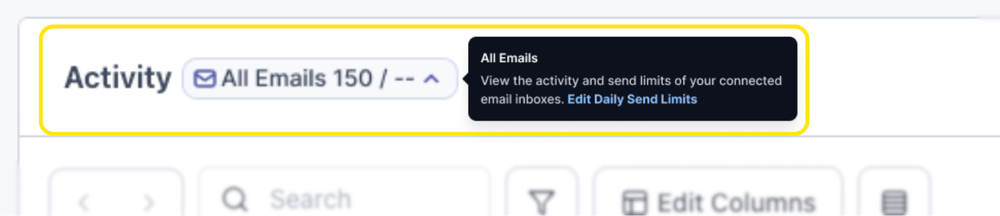
- Appears on the Activity Page, Email Settings, Campaigns, and within notification banners if your overall daily quota has been reached.
- This helps you monitor your entire account’s sending volume in real time.
If no limit has been set, you’ll see “--” in place of a number on the daily send limit. This means there is no limit to the number of emails sent out for that campaign for the day.
2. Campaign Email Limit Icon
- Appears in the top-right corner of an individual campaign.
- Shows how many emails have been sent today for that specific campaign versus your set daily campaign send limit.

- If you set a campaign send limit (e.g., 300 emails per day), Seamless will stop sending once that limit is reached. Any remaining emails will be scheduled to send during the next open send limit window, likely the following day.
Setting Your Email Limits
- You can set a daily send limit per inbox directly in your Email Settings.
- Once your campaign or overall inbox reaches its limit, no more emails will be sent that day.


- To modify limits, click the email limit icon or notification banner. You’ll be redirected to your Email Settings, where you can adjust the daily send limit or campaign-specific limit.
Notifications & Banners
When you reach your email limit, Seamless.AI will automatically display a notification banner to inform you:
- Campaign Notification Banner - Appears when your campaign-specific daily limit has been reached.
- All Emails Notification Banner - Appears when your total daily send limit across all inboxes has been met.
These banners provide options to:
- Edit your send limits directly from the banner
- Wait until the next day when your limits automatically reset
- Schedule unsent emails for a different time or day.
Tips & Best Practices
- Review your campaign and account-wide send limits regularly.
- Set realistic limits to avoid hitting caps mid-campaign.
- If you frequently reach your daily quota, consider distributing sends across multiple inboxes.
- Keep your contact lists clean to maintain deliverability and reduce wasted sends.
