
Sync Lists to a Campaign
Learn how to sync a list to a campaign so new contacts are automatically added as the list grows. This article also covers how to manage synced lists, add filtered or searched contacts to a campaign, and remove or delete a synced list.
Sync a List to a Campaign
Syncing a list to a campaign allows new contacts added to that list to be automatically added to an active campaign. This is useful when you want to keep a campaign updated without manually adding contacts each time.
How List Syncing Works
When a list is synced to a campaign, any new contacts saved to that list will automatically flow into the connected campaign. This includes contacts added from search, saved from other workflows, or added later to the same list.
Sync a List from a Campaign
You can sync a list while working inside a campaign or from the Contacts Lists page.
To add a synced list within a Campaign:
- Open the campaign
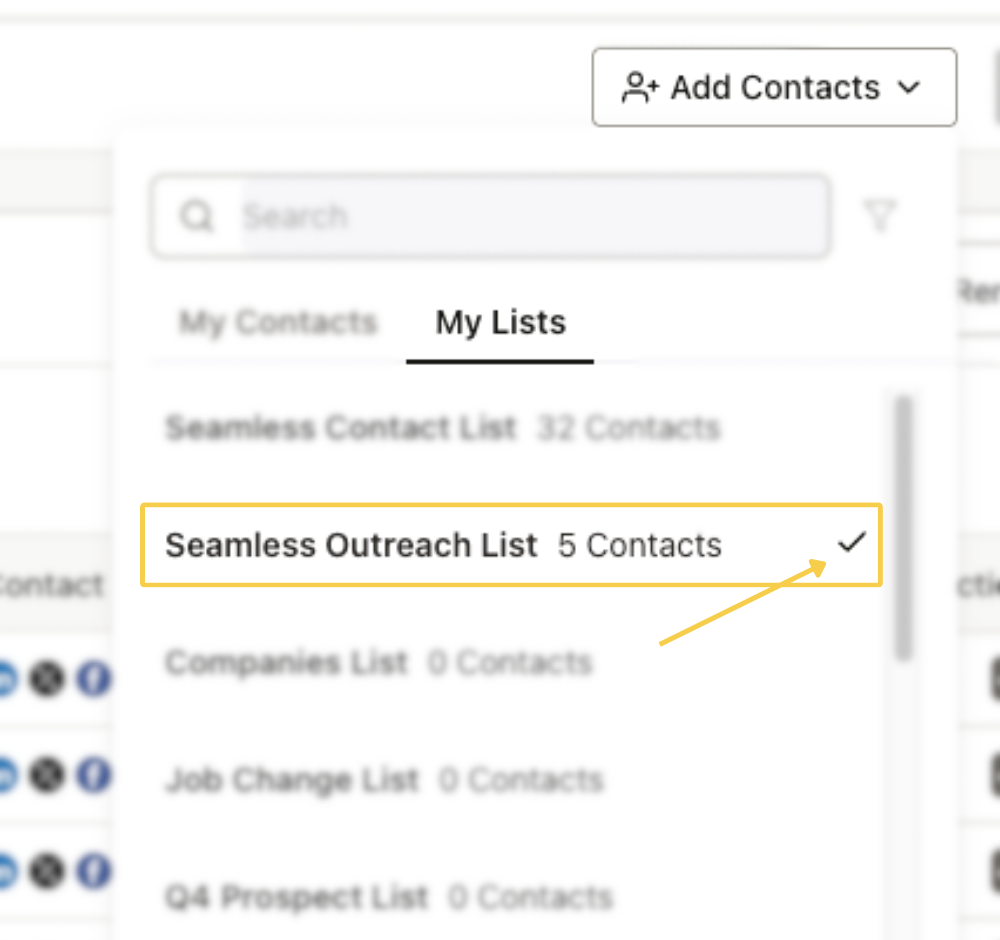
- Click Add Contacts
- Select My Lists
- Choose the list you want to use
- Click the plus icon to add and sync the list to the campaign

Once synced, the list will display a checkmark, confirming that new contacts added to that list will automatically be added to the campaign.
View Synced Lists
If you return to the campaign later and open Add Contacts > My Lists, any previously synced list will still show the checkmark.
You can view the contacts added to the campaign from the campaign’s Contacts tab.
Manage Synced Lists from My Contacts
Contact Lists
You can also review list-to-campaign activity from My Contacts.
In the Contact Lists section, the Campaigns column shows whether a list is currently being used in one or more campaigns. Selecting that entry lets you see which campaign or campaigns the list is connected to.
You can also use the paper airplane icon in the Actions column to send a list directly to a campaign.

Add Filtered Contacts to a Campaign
If you apply filters in My Contacts, you can send that filtered group of contacts to an active campaign using the paper airplane icon in the top-right corner. This lets you work from a filtered view instead of a saved list.
Remove a Synced List from a Campaign
To remove a synced list from a campaign:
- Open the campaign
- Go to Add Contacts
- Find the synced list you want to remove from the campaign
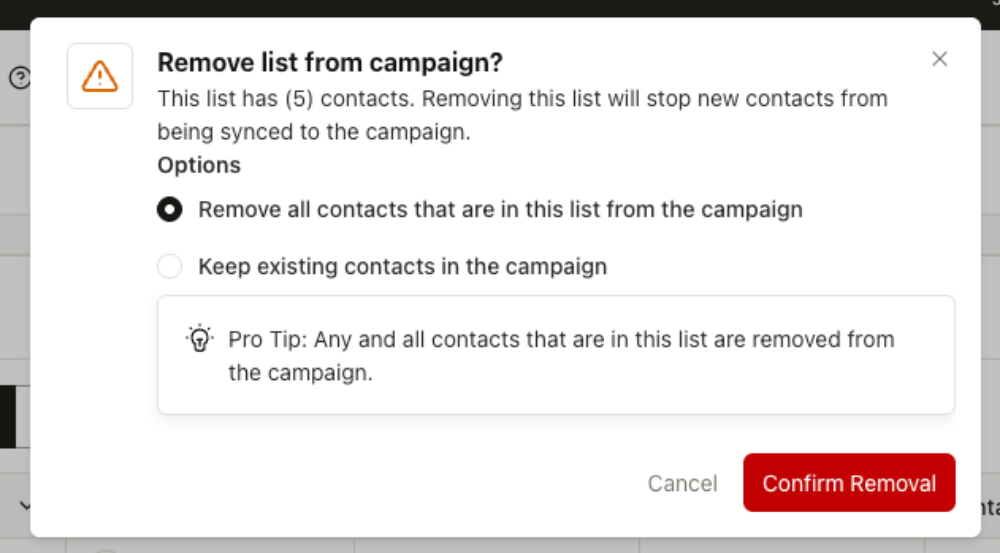
- Click the checkmark icon, and then the X to remove the list

When removing a synced list, you’ll be asked whether you want to:
- Keep contacts already added to the campaign
- Remove those contacts from the campaign
This gives you control over whether existing campaign members stay active after the sync is removed.
Delete a Synced List
If you delete a list that is already synced to a campaign, you’ll also be prompted to choose what happens to the contacts that were previously added to that campaign from the list.
You can decide whether those contacts should remain in the campaign or be removed.
