
AI Search
Natural Language Search helps you find the right contacts and companies faster by letting you describe exactly what you are looking for in plain language. This article explains how to run a search, review the applied filters, and refine your results.
Natural Language Search helps you find the right contacts and companies faster by letting you describe what you’re looking for in a straightforward way instead of manually building your search with filters.
What Is Natural Language Search?
Natural Language Search allows you to type a description of your ideal contact or company directly into the search bar. Instead of selecting multiple filters one by one, you can simply explain what you’re looking for, and Seamless will generate matching results based on your search.
.png)
For example, you could search for:
Contact-led searches
- Heads of Marketing at Series B startups in NYC
- CFOs at manufacturing companies with 200–500 employees
- Recently promoted RevOps leaders at SaaS companies
- VPs of Engineering at fintechs, excluding crypto
- Directors of Sales who switched jobs in the last 6 months
Company-led searches
- Private equity-backed logistics companies in the Midwest
- B2B SaaS companies that raised a Series A in the last year
- Healthcare startups hiring for AI roles
- E-commerce brands doing $10M–$50M in revenue
- Construction firms in Texas using Procore
This makes it easier to quickly find contacts or companies that match your ideal customer profile.
How to Use Natural Language Search
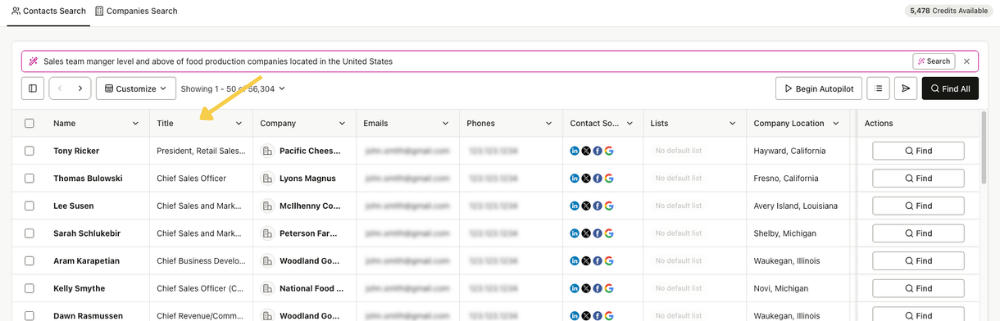
Using Natural Language Search is simple. Instead of building your search manually with individual filters, you can enter a short description of the type of contact or company you want to find. Seamless will then translate that search into relevant results and applied filters for you.
- Open the Search page.
- At the top of the page, locate the Natural Language search bar.
- Type who or what you are looking for in a straightforward way. The more specific you are, the more tailored the results will be to your ideal profiles.
- Click “Search”.
- Review the results page to see the contacts or companies returned based on your request.
.png)
Once the search runs, Seamless will generate a list of results that match the criteria described in your prompt.
Reviewing and Adjusting Filters
After your search results load, you can open the filter panel on the left side of the page to see which filters were applied based on your search. The filter panel is hidden by default, you can toggle open the filter column through the “Toggle Search Filters” button in the top left corner.
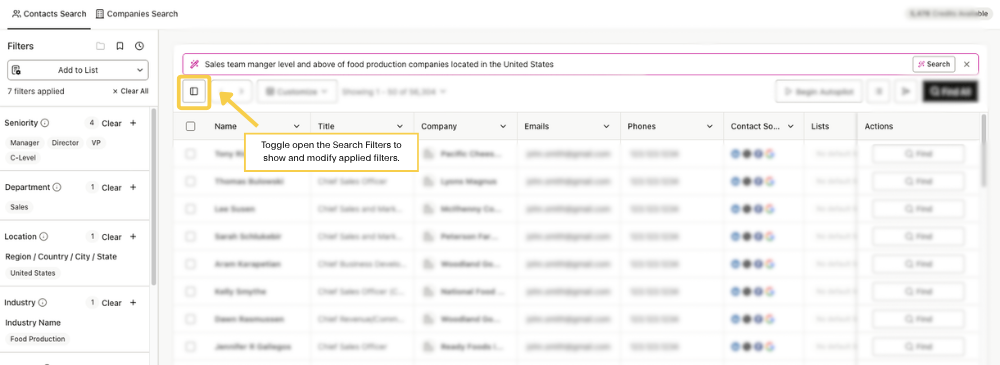
From there, you can:
- Review the filters created from your search
- Adjust filter values, such as applying additional filters.
- Exclude companies, titles, or other undesired filters populating in your results.
- Refine your results further
This gives you the flexibility of AI-generated search with the control of traditional filtering.
How Results Appear
Results display the same way as a standard search. You will see a preview of contact or company profiles that match your search criteria in the results list. Research and save profiles through the Find button in the Actions column or the Find All button on the top right of the results page to research all profiles on the page. After researching the profile(s), view additional details about the contact or company by clicking on their name and view the flyout profile on the right-hand side just as you normally would.
