
Microsoft Dynamics
Connect Microsoft Dynamics with Seamless to streamline how contacts, leads, and companies move into your CRM. This guide walks through connecting the integration, configuring import mappings and CRM settings, managing deduplication and automation options, and troubleshooting common import errors.
Seamless and Microsoft Dynamics Integration
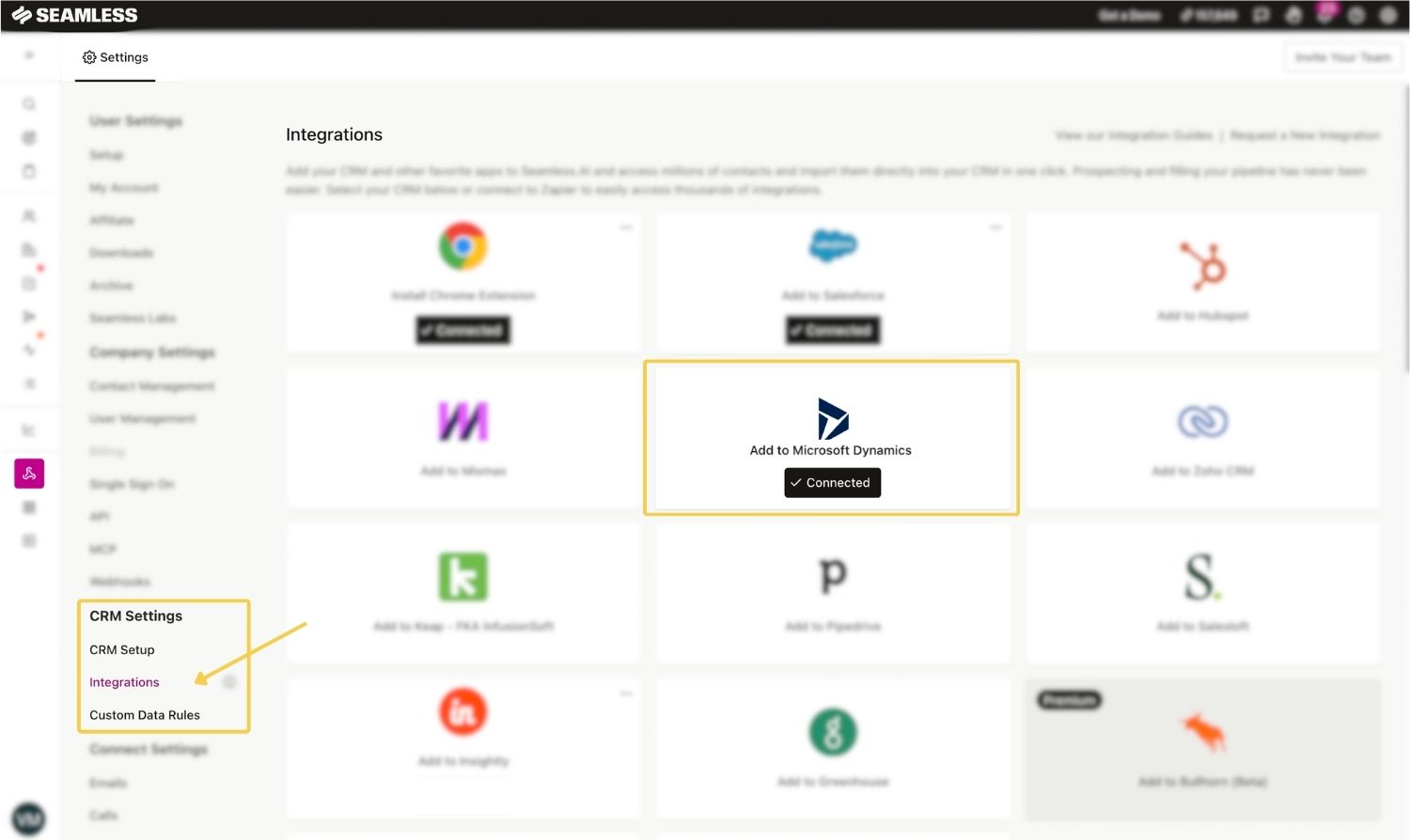
To connect Microsoft Dynamics CRM to Seamless, navigate to your Integrations page from your Seamless settings.
From there, locate the Microsoft Dynamics CRM integration and click the Microsoft Dynamics icon. You will be prompted to log in to your Microsoft Dynamics account and authorize the connection.
Once connected, you will see a Connected status confirming that your Microsoft Dynamics CRM is successfully integrated with Seamless.
Microsoft Dynamics Settings and Mappings
- Navigate to your CRM Setup page through your settings, by clicking your initials in the bottom left corner of your Seamless platform.
- Following the available options, simply complete your universal settings based on you or your company's preference and you will be ready to start importing directly into Microsoft Dynamics.
- Ensure you set up all mappings to confirm that all fields you want to send over to Microsoft Dynamics from Seamless are mapped to the proper fields.
Please note: Our direct integration with Microsoft Dynamics comes with pre-set field mapping options - Customize fields for your entire organization or secure settings exclusively for your organization. Additionally, specify whether the data will override in your CRM for each mapping. Easily configure these options using Set Org Wide or Lock Org Wide fields (found in Universal Settings + Importing Mappings) and choose Override as needed (found in Importing Mappings).
CRM Import Mapping Fields
Select the Import Type: Import Mappings can be set based on your preference of importing type. Choose if you want to set import mappings for importing as Account, Contact, or Lead.
Seamless Field: Select the data field from Seamless that you want to send to Microsoft Dynamics. Seamless supports more than 100 available fields, including contact, company, location, and research information.
Microsoft Dynamics Field: Select the corresponding field in Microsoft Dynamics. Seamless regularly polls them to stay current. During import, the value from the selected Seamless field will be transferred to the mapped Microsoft Dynamics field.
Managing Import Mappings
Overwrite:
- Yes: Seamless replaces existing data in the mapped Microsoft Dynamics field with the new value from Seamless.
- No: Seamless only adds data when the mapped Microsoft Dynamics field is blank.
Allow User Edit: Allow your Users to edit the specific setting or not depending on if the checkbox is engaged.
Note: This is a permission that can be modified by account owners or admins.
- Checkbox selected: Users can edit the setting. The admin’s configuration remains the default.
- Checkbox cleared: Users can view the setting in a read-only state but cannot change it.
Edit CRM Mapping: To edit, click the two-dot menu on the right side of the row.
- Set a Default Value: If Seamless data does not exist for that field, is there a value you want filled in its place
- Delete Mapping: If mapping is no longer needed.
Additionally, Seamless provides the ability to Add New Mapping, Add Custom Mapping, and Set Custom Data Rules.
Check out this article to learn more: Customizing CRM Import Mappings
Microsoft Dynamics Settings
When integrating your Microsoft Dynamics CRM with Seamless, you have the ability to customize the settings.
Universal Settings
Owner: Choose which Seamless user should be assigned as the owner of records imported to Microsoft Dynamics. This allows you to control who imported contacts or accounts are saved under in Microsoft Dynamics.
Set Total AI Threshold/Limit on Contact Imports: Use this setting to establish a minimum Total AI threshold for importing contacts. Specifically, it applies to the Total AI score of the Primary Business Email. For example, if the Total AI Slider is set to 80, the Primary Business Email must have a Total AI score of 80% or higher to successfully import on the first attempt.
Contact Account Creation:
- Yes: Seamless can create accounts automatically for contacts not in your CRM.
- No: No account is created; users need to choose an existing account for contact import.
- Prompt: Users are asked to select or create an account with each import.
Update Converted Lead’s Contact Record: Controls what happens when Seamless finds a Microsoft Dynamics Lead that has already been converted to a Contact.
- Yes: Seamless automatically adds available information to the Contact record associated with the converted Lead.
- No: Seamless does not update the associated Contact record.
- Prompt: Users are asked whether they want to update the associated Contact record when a converted Lead is detected during import.
Auto-import to Microsoft Dynamics: Enable this option to automatically import contacts/companies into your CRM when clicking the FIND button in Seamless. By turning this on, you skip the step of manually selecting contacts/companies in My Contacts and My Companies before importing them into your CRM.
Allow contacts/leads to import without a validated email: When set to Yes, Seamless permits users to import contacts even without a validated email. A validated email includes a Valid or Accept All response from Seamless's validation during the AI research process.
Allow Users to Create New / Custom Mappings: Allows users, that are not admin, to create new mappings that will only affect their account.
Advanced Settings
Set Contact Import Match Score: Define your match score against your CRM records. A value of 100% requires a contact to have a 100% match score against a CRM record to automatically import. Records with a lower match score will show a deduplication screen with "similar record" option to select before importing.
Example: A 95% setting will allow automatic import (no deduplication alert) if there is a match score of 95% or above against a record in your CRM unless there are two of the exact same match scores. (Seamless does not recommend less than 95% Match score for this Setting)
Set Company Import Match Score: Set Company Import Match Score to define your match score against your CRM records. A value of 100% requires a company to have a 100% match score against a CRM record to automatically import. Records with a lower match score will show a deduplication screen with "similar record" option to select before importing.
Fill Blank Contact Phone with Company Phone: When set to Yes, Seamless will add the company phone number to the contact phone field if the company phone has a number and the contact phone is blank. This setting is useful when you want to ensure data is present in both contact and company phones during import, especially if there's field validation in your CRM.
Fill Blank Contact Location with Company Location: When set to Yes, Seamless will populate the contact location fields with the company location if the company has a location and the contact location is blank. This setting is ideal for ensuring data presence in both contact and company locations upon import, especially if there's field validation in your CRM.
Enable CRM Alerts: Enables checking if leads or contacts already exist in CRM before using Seamless.
Automated Lists to Accounts for Microsoft Dynamics
This section allows you to automate importing and eliminate manual efforts by mapping Seamless Lists to your selected CRM account.
Once you "Add Account Mapping" you will be able to:
- Select Seamless List: Lists created in Seamless
- Select CRM account - Accounts available that are created in your CRM
- Microsoft Dynamics Import to CRM option on Seamless Contact Card
Microsoft Dynamics Import Errors
You may occasionally receive an error when attempting to import contacts or other records into Microsoft Dynamics. Depending on the error, the issue may originate within Seamless or may be related to your Microsoft Dynamics configuration, permissions, or CRM requirements.
Account Duplication Alert
If you see a yellow flag alert this is letting you know that we found a duplicate Account/Company in your Microsoft Dynamics instance for this contact. To resolve, click on any yellow flag to review Seamless duplicate checking. You will be given the option to either add a new Account or append to an existing Account. Once you make a selection, Seamless will update this record and should import successfully.
Additional Microsoft Dynamics Errors
A red flag indicates you have an error preventing your contact(s) from importing. Clicking the red flag should provide you with additional insight into what is causing that error. Typically it indicates that you need to reconnect your Microsoft Dynamics account or you have a permissions error that is conflicting with the import.
