Company Type Search Filter
Use the Company Type filter in Contact Search and Company Search to narrow results by public or private companies and view Company Type and Stock Ticker details in table view, card layout, and the profile flyout.
Brand refresh in progress
We recently launched a new brand, so some images and videos may differ from what you see in-product. All workflows and guidance remain accurate while we update visuals.

The Company Type filter helps you narrow search results based on whether a company is public or private. This filter is available in both Contact Search and Company Search, making it easier to focus on the types of companies most relevant to your workflow.
What is the Company Type filter?
The Company Type filter allows you to refine results by company ownership type, and can be used in Contacts or Companies search. This can be useful when you want to prioritize companies based on whether they are publicly traded or privately held.
Within the Company Type filter, you can select from the following options:
- All - set by default
- Public Only
- Private Only

Viewing Company Type in search results
When using the Company Type filter, you can view related company details directly in your results.
Display in Table Layout
When using the Company Type filter, you can view related company details directly in your results. In the table layout, the company type information will be displayed in the columns:
- Company Type
- Stock Ticker
This makes it easy to quickly identify whether a company is public or private and, for public companies, view the associated stock ticker symbol.

Note: If you do not see the Company Type or the Stock Ticker column in your results, you may need to add it to your table layout. Select Edit Columns and add Company Type and Stock Ticker to your display layout.
Display in Card Layout
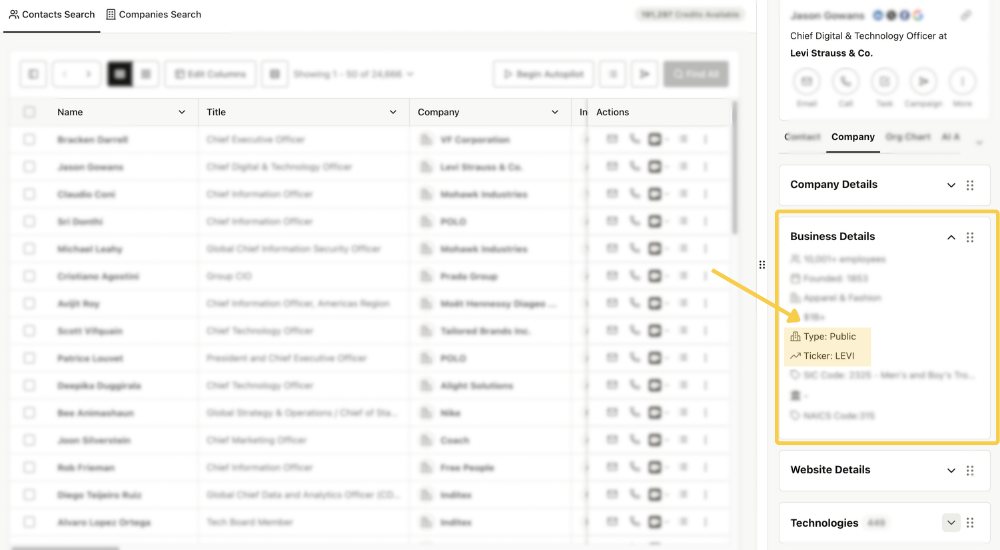
In card view, the Company Type and Stock Ticker are displayed in the Business Details card.
Company Type in the profile flyout
You can also view Company Type information in the profile flyout.
Within the flyout profile, this information appears in the Business Details section, where you can review the company type and stock ticker information alongside other company details.