
Card Layout View
Explore the Card Layout in Seamless AI - a condensed, data-rich way to view contacts and companies. Learn how it differs from Dynamic Layout, where to use it, and how it improves visibility, navigation, and workflow efficiency.
Seamless.AI has introduced a new Card Layout as an alternative to the Dynamic Layout (List View). This update gives users the flexibility to view and interact with contact and company profiles in a more condensed, data-rich format that closely aligns with the profile flyout.
What is the Card Layout?
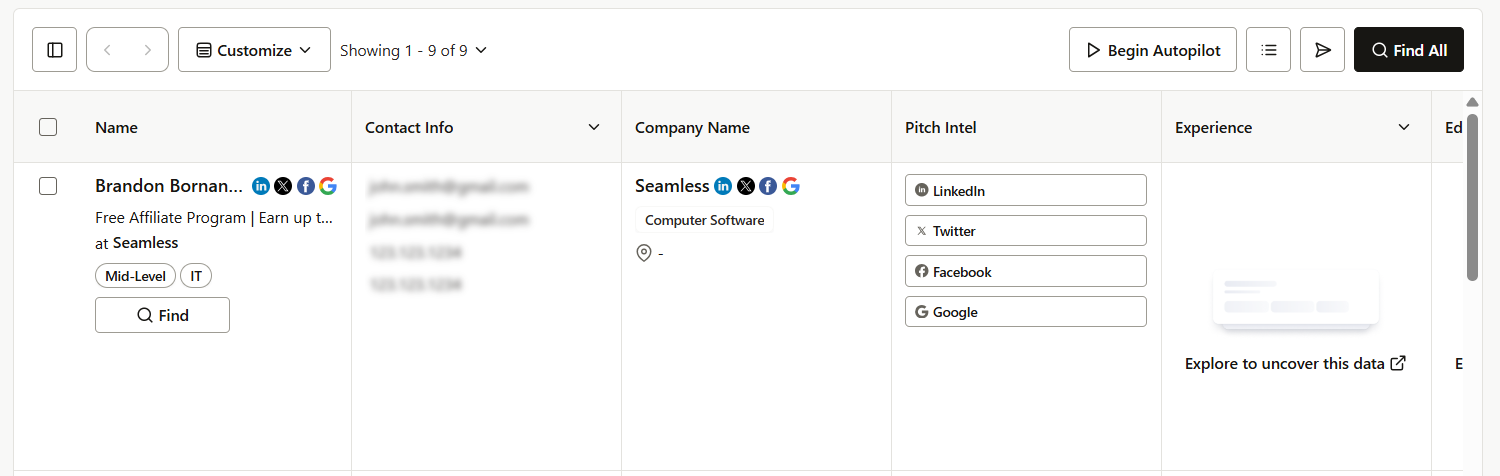
The Dynamic Layout (default) displays contact or company data in a traditional table format with one piece of data per cell. The Card Layout organizes data into dense cards, allowing you to see multiple pieces of information in a single row.
This design mirrors the Profile Flyout, but instead of stacking information vertically, it spreads it horizontally across the row.
Switching Between Dynamic and Card Layout
You can switch between Dynamic Layout and Card Layout on the following pages:
- My Contacts
- My Companies
- Contact Search
- Company Search
How to Switch Between Layouts
- Navigate to your preferred page (My Contacts, My Companies, Contact Search, or Company Search).
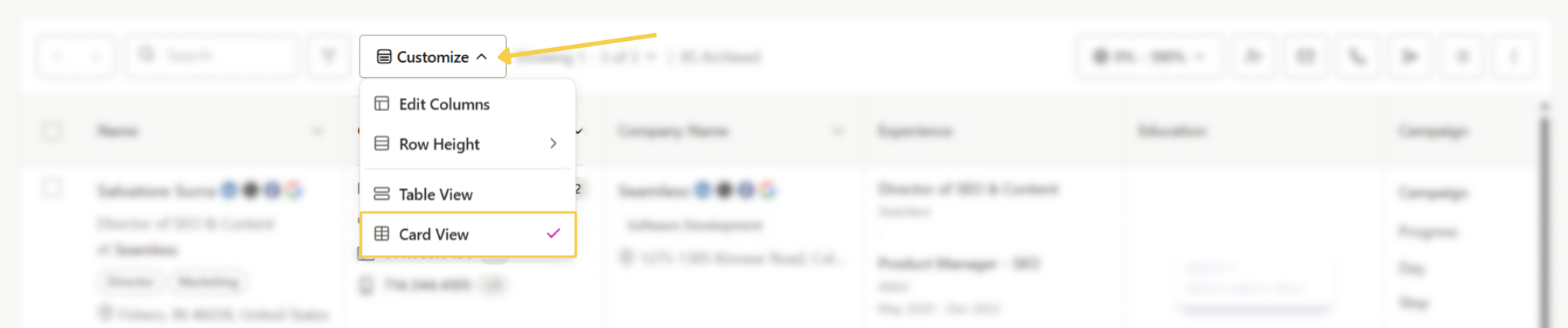
- In the top right corner, next to the Edit Columns button, click the layout toggle icons:
- List View (Dynamic Layout): Standard row/column table format.
- Card View (Four-Square Icon): Condensed card format.
- Your selected layout will instantly update.
Key Features of Card Layout
1. Name Column
The Name column will display previews of Contact or Company information. In a Contacts Search, this column will display Name, Title, Company, Seniority, Department, Location and the Find Button. In the Card Layout, the Find Button will be displayed in the column on the left side, rather than in the Actions Column like the Dynamic Layout.
As you scroll across the row to view additional contact information, the Name column will remain fixed or frozen on the left side while scrolling.
2. Find Button Behavior
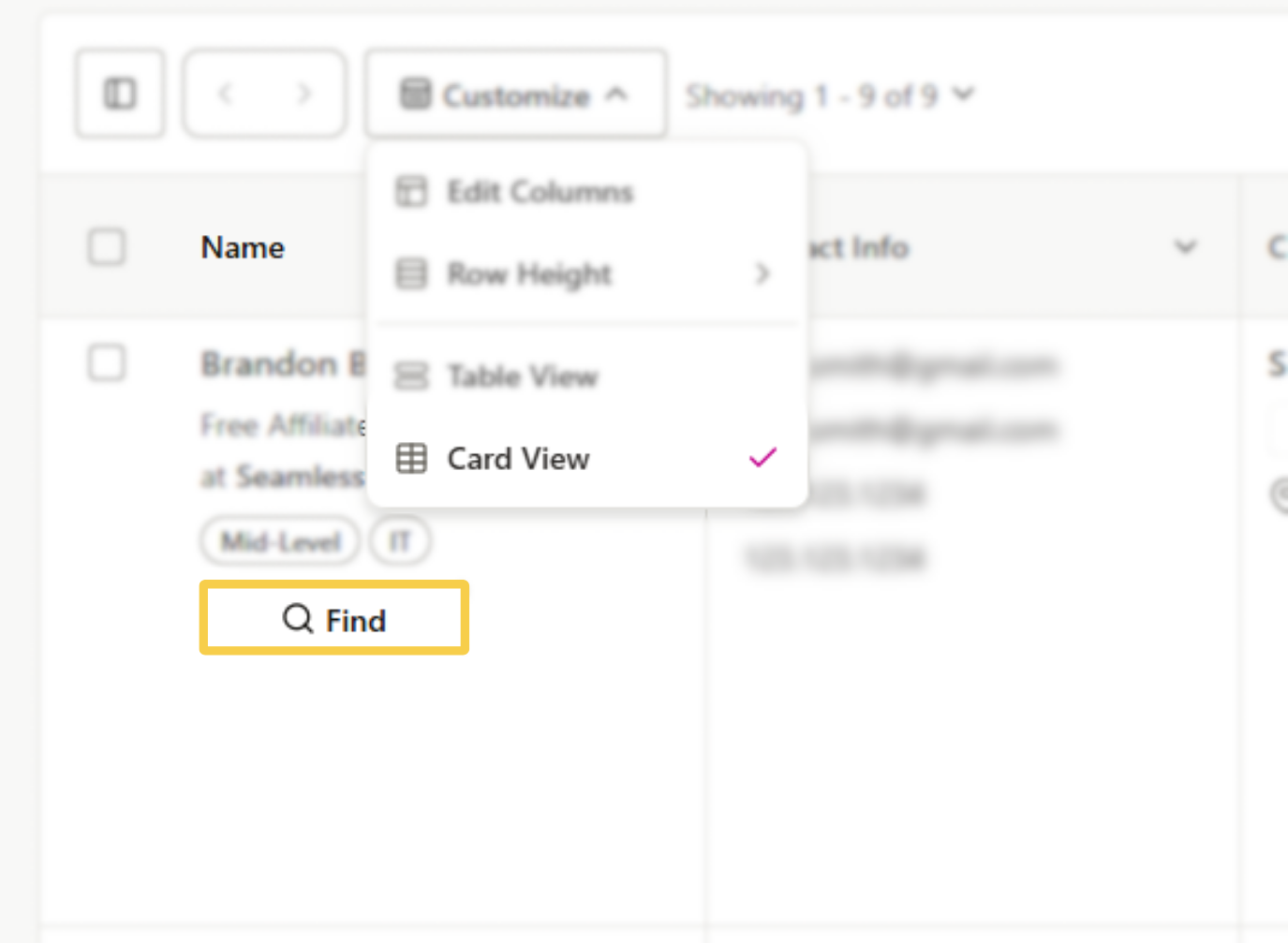
The Find Button is available in the Name Column. Clicking Find reveals the full profile, just like its functionality across the Seamless.AI platform.
Once a contact or company is found, you’ll see:
- Emails & Phone Numbers (under Contact Information)
- Company Details
- Contact Management (status, CRM, lists, etc.)
- Actions (Call, Email, Add to List, Create Task, etc.)
Note: The Actions column has been removed. Actions now appear as circular icons inside the Name column after clicking Find.
3. Available Columns
Card Layout includes the following condensed columns (mirroring the flyout cards):
- Name - Contact Name, Title, Current company, Seniority, Department, etc.
- Contact Information - Emails & phones
- Company - Company overview details. Click the researched company name to expand the profile for more information.
- Manage - Contact status, lists, CRM sync, etc.
- Experience - Work history
- Education - Education history (with “Explore” links to learn more, if missing)
- Business Details - Additional firmographic info
- Job Changes - Role updates
- Campaigns - Connect campaigns the contact is in
- Activity & Tasks - Connect-related actions
- Pitch Intel - Quick-view insights with a View More option that opens the flyout tab
4. Hover & Selection States
- Hover: A light gray highlight shows the row you are hovering over.
- Selected Rows: Clicking a checkbox highlights the row in blue for easy visibility.
Differences Between Contact & Company Views
- Contact Search / My Contacts
- Clicking Find reveals contact-level details (emails, phones, experience, etc.).
- Actions (call, email, add to list) are inside the Name column after finding.
- Company Search / My Companies
- The Company column is frozen.
- Clicking Find reveals company-level details (industry, HQ, company contacts, etc.).
- “Find Contacts” opens the contact search for that company.
Benefits of Card Layout
- More Data Density: See more information per row without excessive scrolling.
- Profile Consistency: Matches the structure of the profile flyout for easier navigation.
- Cleaner Interaction: Actions are embedded directly into the name column, reducing clutter.
